The Variant-Level Links feature allows you to assign a unique external link and button text to individual product variants.
This is useful when different variants of the same product need to direct customers to different external destinations, such as separate affiliate listings, partner websites, or marketplace pages.
How to Configure Variant-Level Links
Step 1: Open the Product
- Open the Outlink dashboard.
- Navigate to the product you want to configure.
- Click Edit Outlinks.
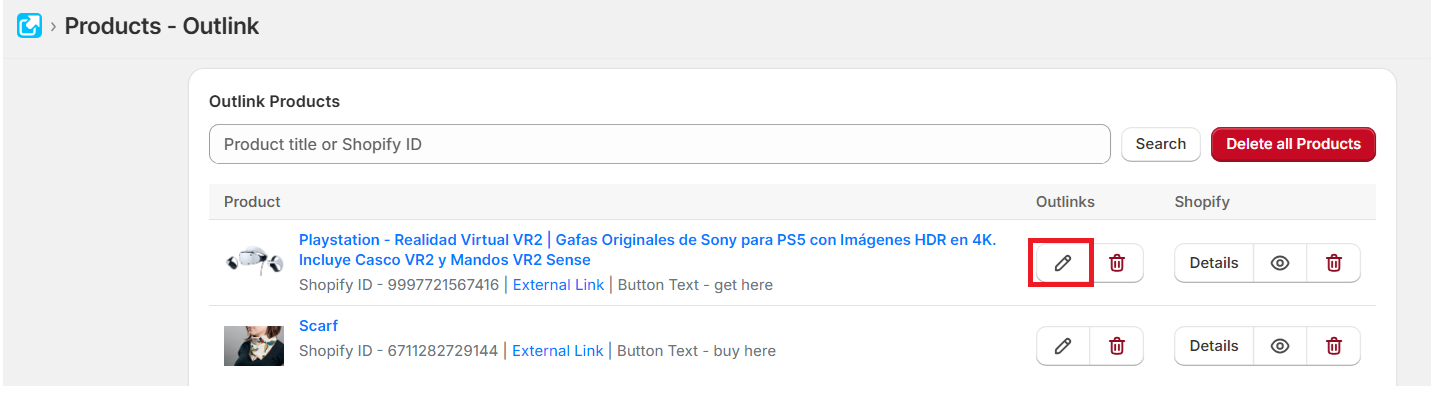
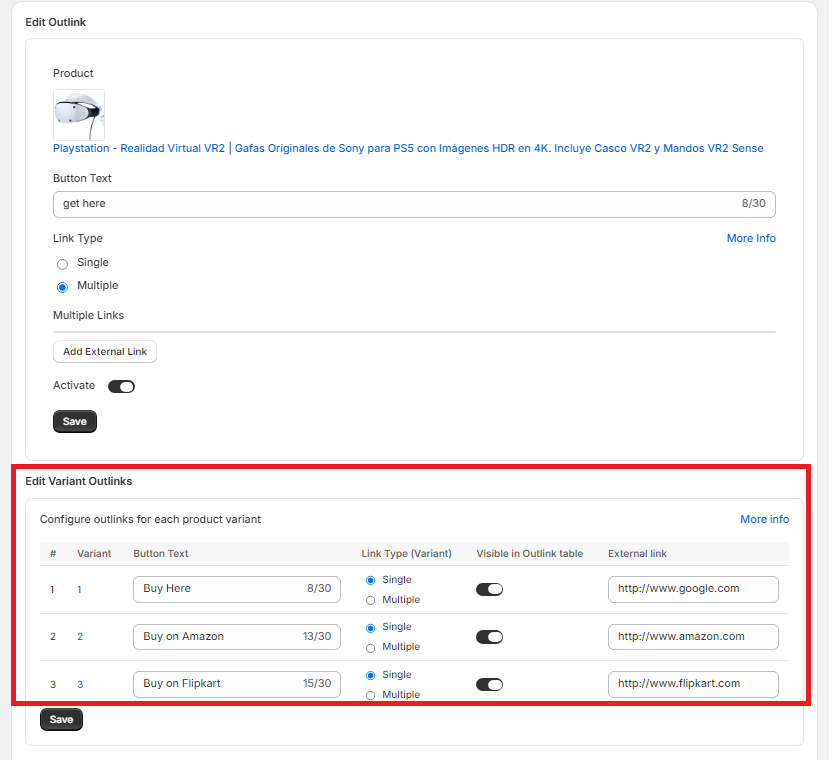
Step 2: Configure Links for Each Variant
On the Edit Outlinks page, you'll see a list of the product's variants.
For each variant, you can specify:
- External Link – The destination URL for that variant.
- Button Text – The text displayed on the Outlink button.
Repeat this for each variant you want to configure.
Step 3: Save Your Changes
After configuring the required variants, click Save to apply your changes.
How It Works
When customers visit your product page:
- They select a product variant (for example, Size, Color, or Style).
- They click the Outlink button.
- They are redirected to the external link assigned to the selected variant.
If no external link has been configured for the selected variant, Outlink automatically uses the parent product's external link instead.
Important Notes
Plan Availability
Variant-Level Links are available on the Pro plan and above.
Bulk Editor Support
Variant-Level Links cannot currently be created or updated using the Bulk Editor.