Link Masking (also known as Link Cloaking) lets you replace long, complex external or affiliate URLs with clean, user-friendly links.
Instead of displaying lengthy URLs containing tracking parameters, Outlink generates a shorter, cleaner link that redirects customers to the intended destination. This creates a more professional appearance and can help improve customer confidence when clicking external links.
Why Use Link Masking?
Long affiliate links often contain multiple tracking parameters that can appear confusing or untrustworthy to customers.
Using Link Masking helps you:
- Display clean and professional-looking links.
- Build customer trust by hiding long tracking URLs.
- Create a more polished shopping experience.
- Encourage more customers to click your external links.
Example
Original Affiliate Link
https://www.amazon.com/dp/B08JCJMZS2?dchild=1&keywords=gaming&qid=1605604583&sr=8-3&tag=gamingboyyzz-20&linkCode=ogi&th=1&psc=1
Masked Link
https://outpage.co/shop/5930084532378
Note
The masked link redirects customers to the original destination while presenting a cleaner and easier-to-read URL.
How to Enable Link Masking
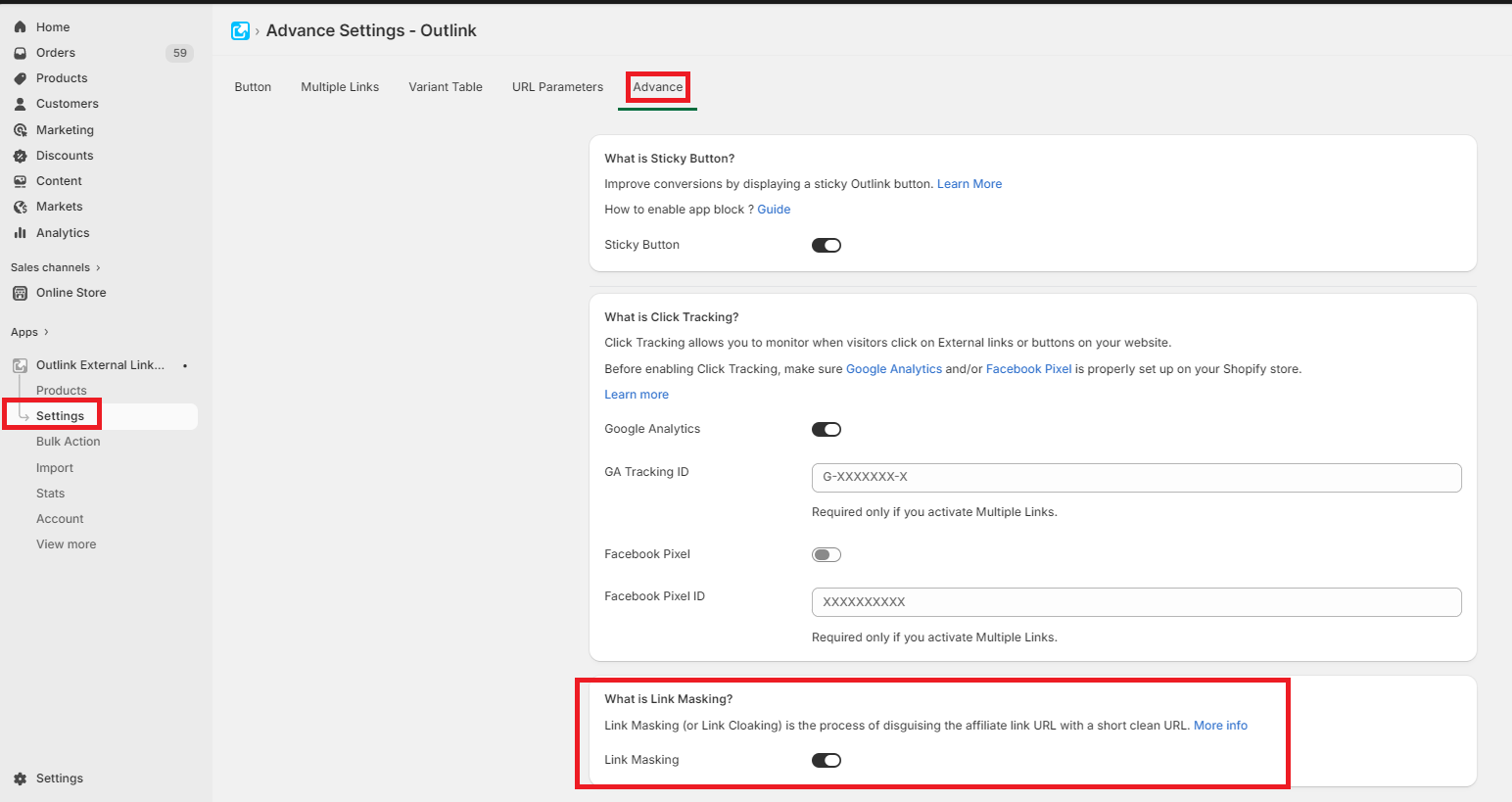
Step 1: Open Link Masking Settings
From the Outlink Dashboard, navigate to: Settings → Advance > Link Masking
Step 2: Enable Link Masking
- Turn the Activate toggle ON.
- Click Save.
Once enabled, Outlink will automatically generate masked links for your external URLs.
Example :
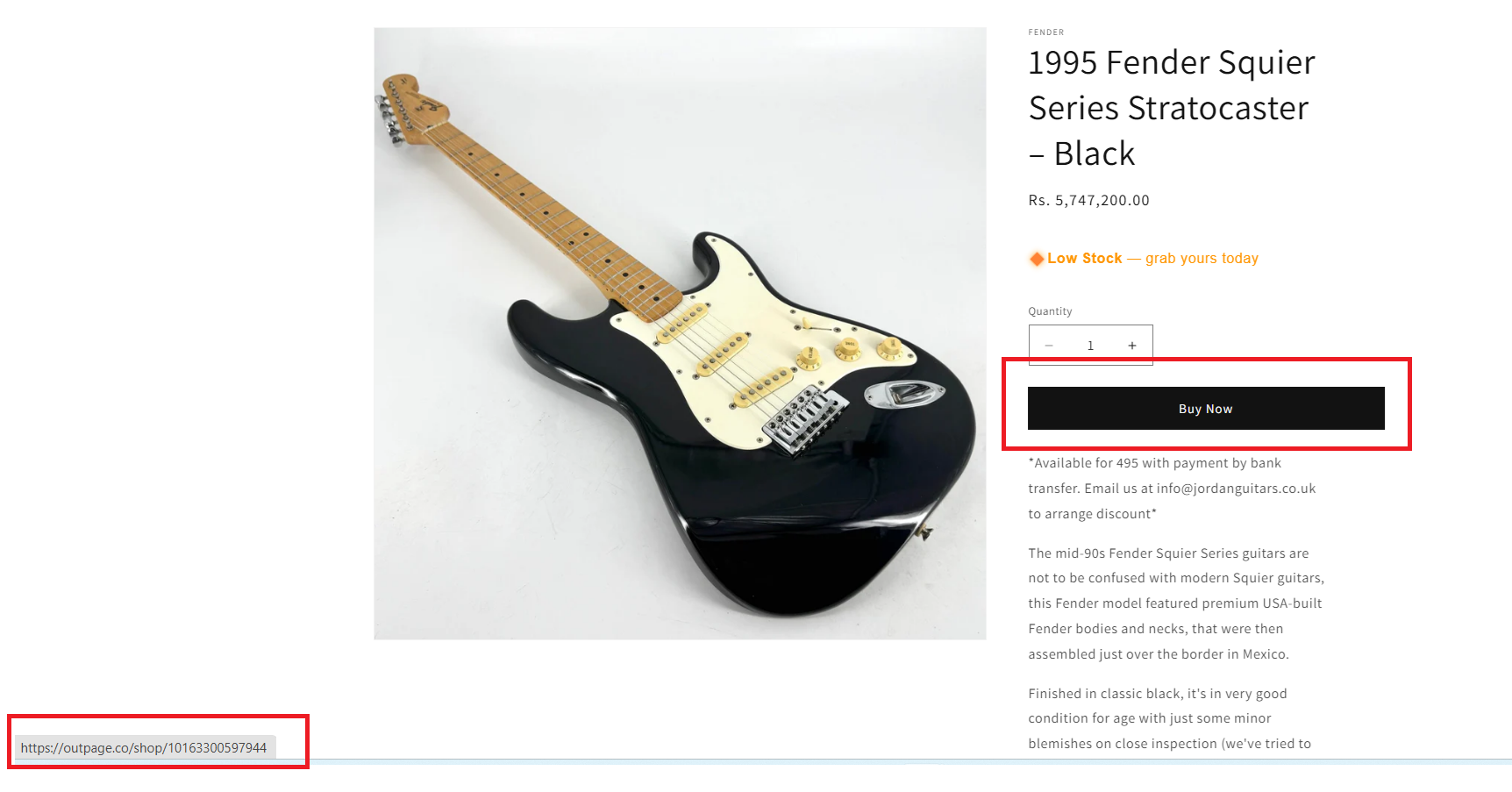
How It Works
When a customer clicks an Outlink:
- The customer clicks the Outlink button on your product page.
- Outlink redirects the customer through a clean, masked URL.
- The customer is then taken to the original external destination.
The shopping experience remains seamless while displaying a cleaner URL during the redirect.
Important Notes
Plan Availability
Link Masking is available on the Gold plan and above.
App Dependency
If the Outlink app is uninstalled, Link Masking will no longer function, and customers will be redirected using the original external links.