The Outlink Variant Table lets you display product variants in a clean, organized table, making it easier for customers to view and interact with multiple variants.
Follow the steps below to add the Outlink Variant Table to your store.
Before You Begin
The Variant Table feature is available on the Pro plan and above.
Step 1: Enable the Variant Table
- Open Outlink External Links Button from your admin.
- Navigate to Settings → Advance
- Turn on the Variant Table option.
Learn More
For additional information about enabling the Variant Table, refer to the Variant Table Guide.

Step 2: Open the Theme Editor
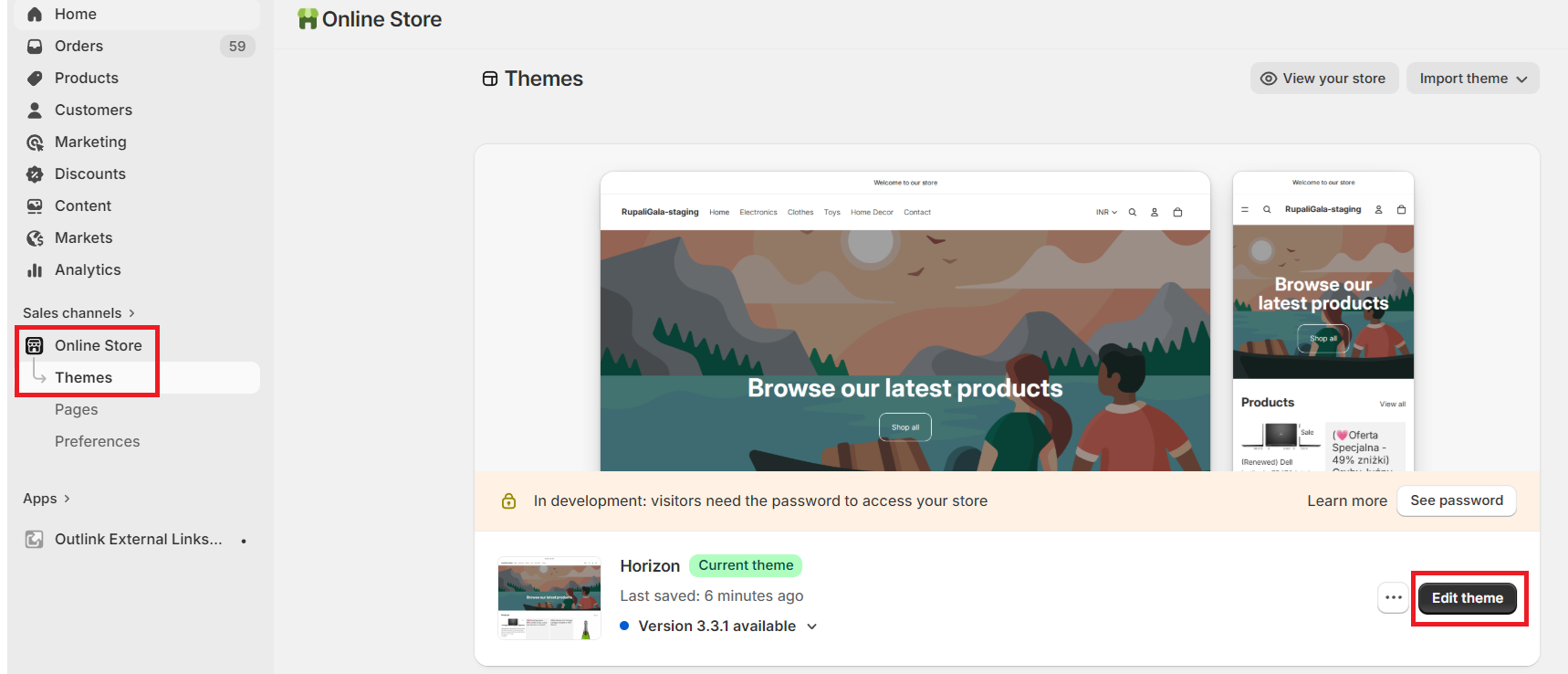
From your admin, navigate to:
Online Store → Themes → Edit Theme
This opens the Theme Editor where you can add app blocks to your storefront.
Step 3: Select a Product Template
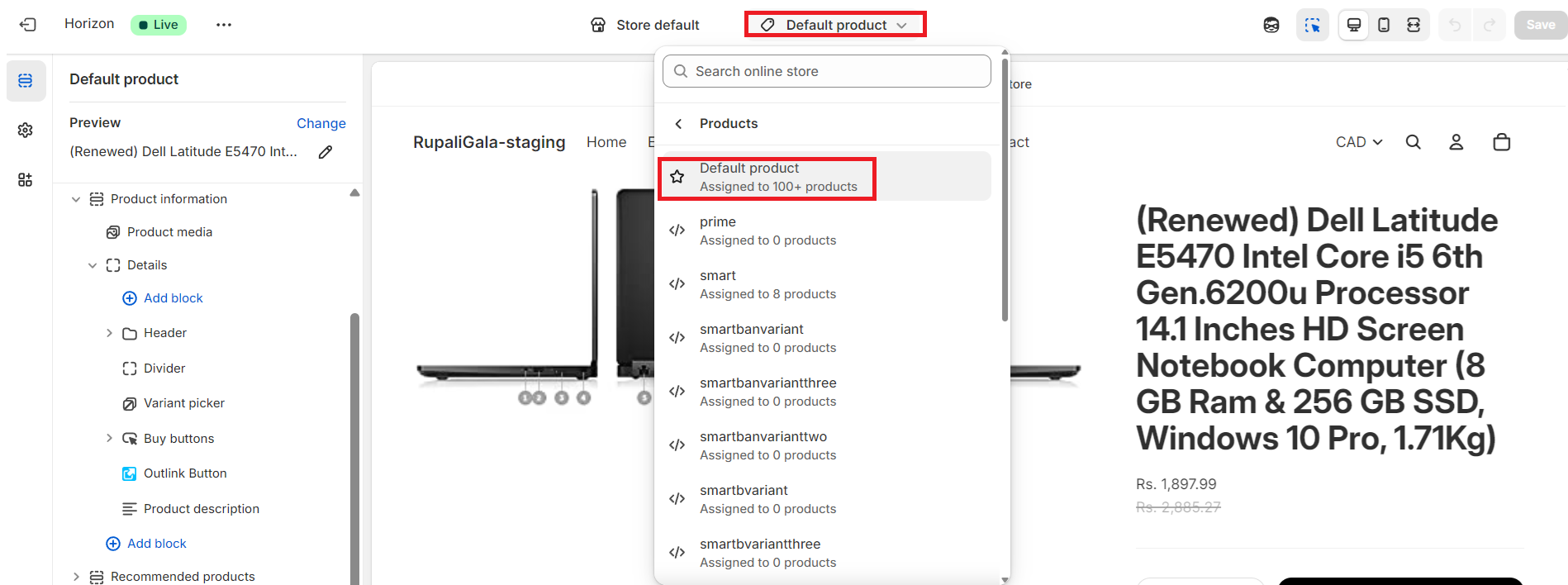
From the template selector at the top of the Theme Editor, choose the Product template where you want the Variant Table to appear.
Tip
If your store uses multiple product templates, repeat these steps for each template where you'd like to display the Variant Table.
Step 4: Add the Outlink Variant Table App Block
- In the left sidebar, click Add block.
- Under the Apps section, select Outlink Variant Table.
Position the Block
Drag and drop the app block to your preferred location.
Recommended placement: Just below the Buy Buttons or Outlink Button for the best customer experience.

Step 5: Customize the Variant Table (Optional)
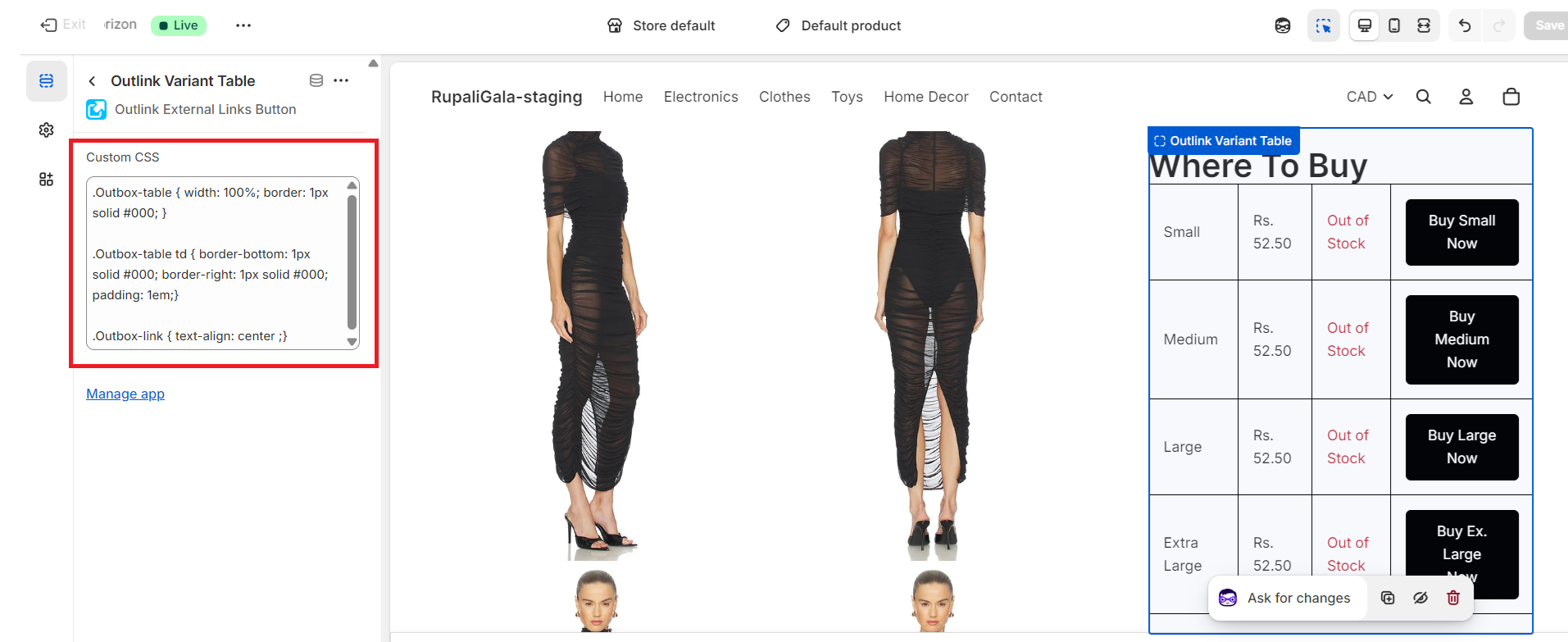
You can further customize the appearance of the Variant Table using Custom CSS.
Example:
.Outbox-table {
  width: 100%;
  border: 1px solid #000;
}

.Outbox-table td {
  border-bottom: 1px solid #000;
  border-right: 1px solid #000;
  padding: 1em;
}

.Outbox-link {
  text-align: center;
}
Tip
Custom CSS allows you to match the Variant Table with your store's branding and theme design.
Step 6: Configure the Block Settings
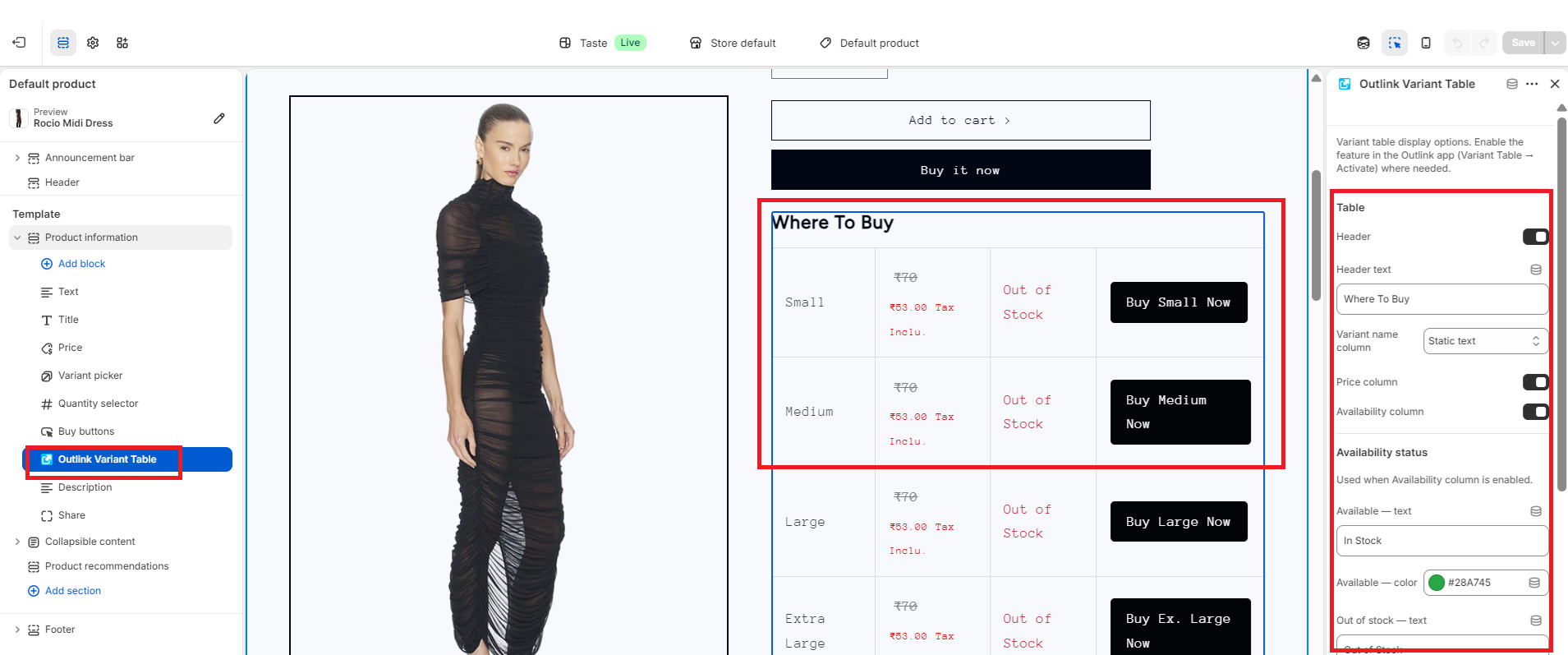
Select the Outlink Variant Table block to access its settings.
Adjust the available options to control how the Variant Table is displayed on your product pages.
Step 7: Save Your Changes
Click Save in the Theme Editor to publish your changes.
Visit one of your product pages to verify that the Variant Table is displayed correctly.
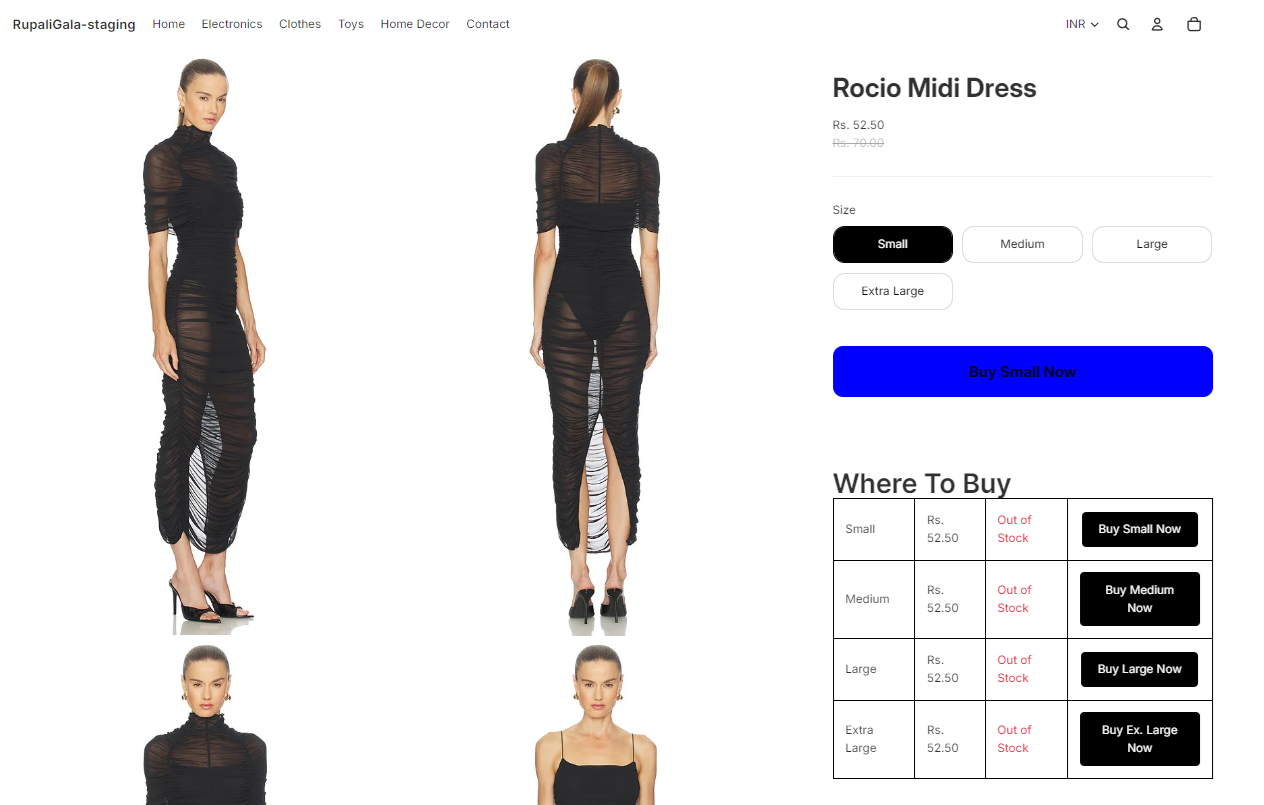
Sample Preview
Note
The Variant Table feature is available on the Pro plan and above.
Need help?
If you have problems with adding the button or want to change the way the button looks, or for any other request, please raise a support ticket here. We will take care of it.