Outlink allows you to import new products or update existing products in bulk using a CSV file. You can also configure Outlinks during the import process, making it easy to manage large product catalogs without editing products individually.
How It Works
Step 1: Open the Import Tool
From the Outlink dashboard, navigate to:
Import → Via CSV
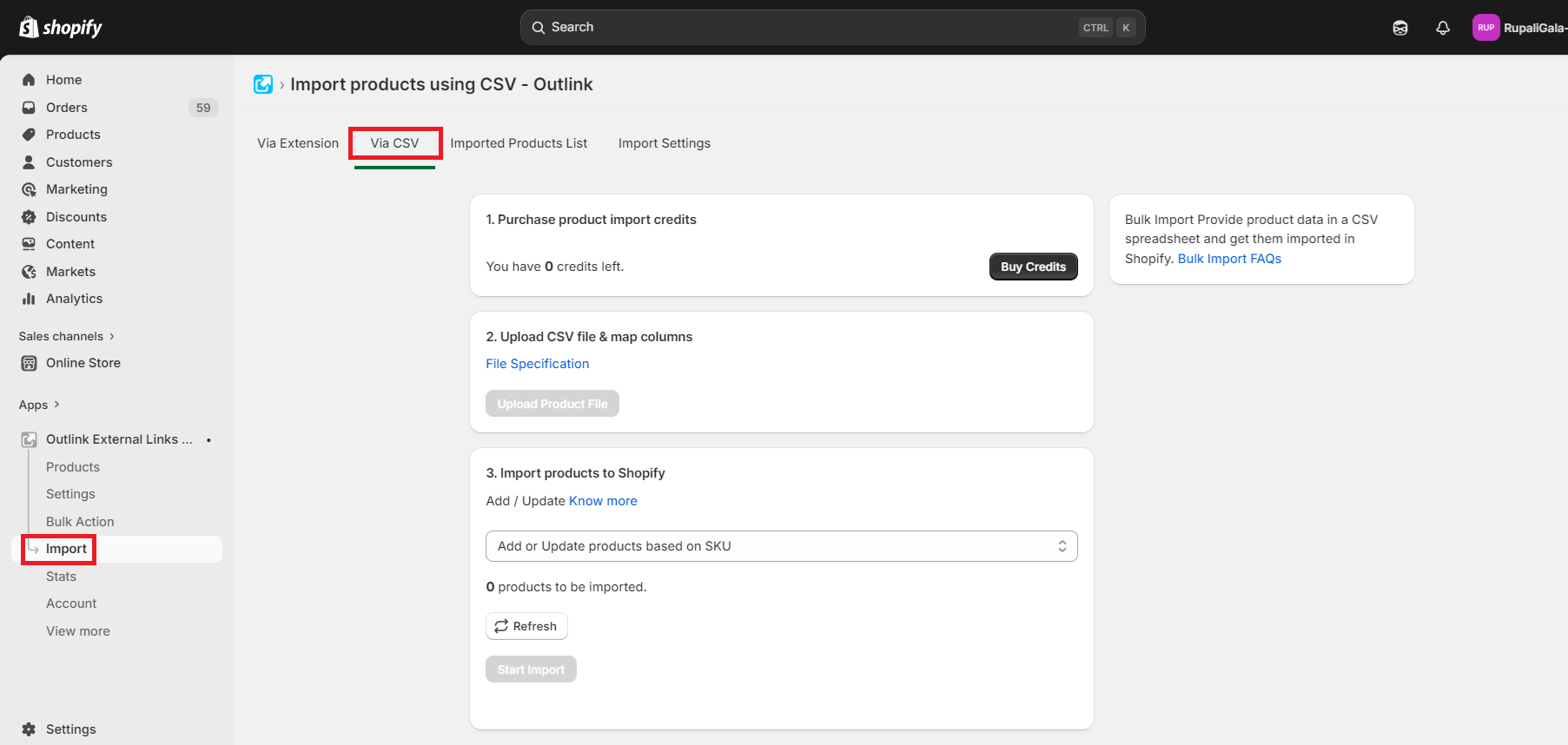
Step 2: Purchase Import Credits
Before starting the import, ensure you have sufficient Product Import/Update Credits.
- 1 USD = 200 Credits
- 1 Credit = Import or Update 1 Product
Tip
Credits are deducted only for products that are successfully imported or updated.
Step 3: Prepare Your CSV File
Before uploading your CSV, ensure it meets the following requirements:
Check file specifications here.
Upload the CSV file containing your product information. Once uploaded, map the CSV columns to the corresponding product fields to ensure the data is imported correctly.

Step 4: Choose the Import Mode : know more
Select how you want the app to process your CSV:
- Import Products – Add new products to your store.
- Update Products – Update existing products by matching their SKU.

Step 5: Start the Import
Click Start Import to begin processing your CSV file.
The app will import or update your products and configure the Outlinks based on the data provided in the CSV.
Important Notes
Variant Support
Bulk product import currently supports single-variant products only. Products with multiple variants are not supported.
Processing Time
The estimated processing time is:
Number of Products × 3 seconds
Actual processing time may vary depending on the number of products and platform API limits.
Tip
Before starting the import, review your CSV file to ensure all required fields are correctly mapped. This helps prevent import errors and ensures your products are processed successfully.