The Quick View feature lets you update inventory for all products that share the same SKU in just a few clicks. Instead of editing each product individually in Shopify, you can restock every duplicate SKU simultaneously, saving time and ensuring inventory consistency.
How to Restock Inventory
1. Open the Inventory Page
Launch the Flo SKU Sync app and navigate to the Inventory page.
2. Select Quick View
Click the Quick View option to open the inventory restocking tool.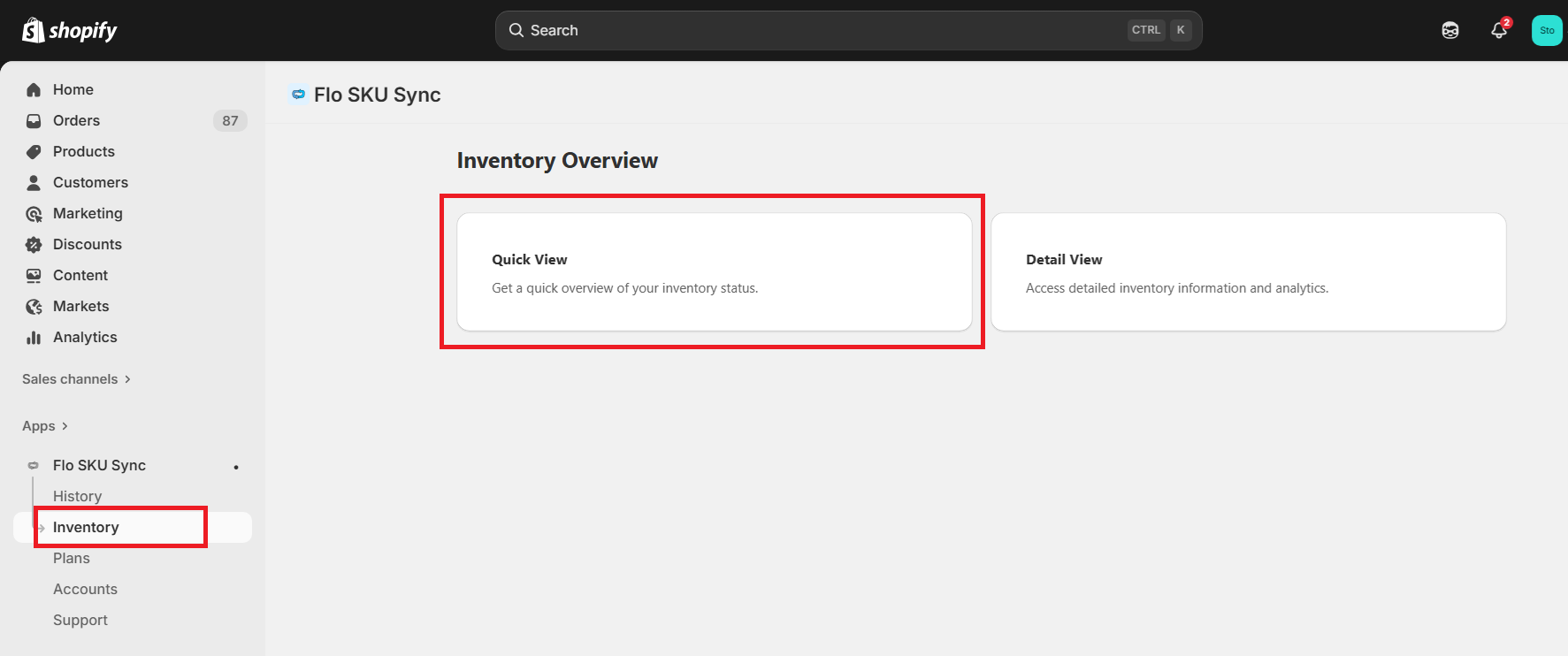
3. Choose a Shopify Location
Select the Shopify location where you want to update the inventory.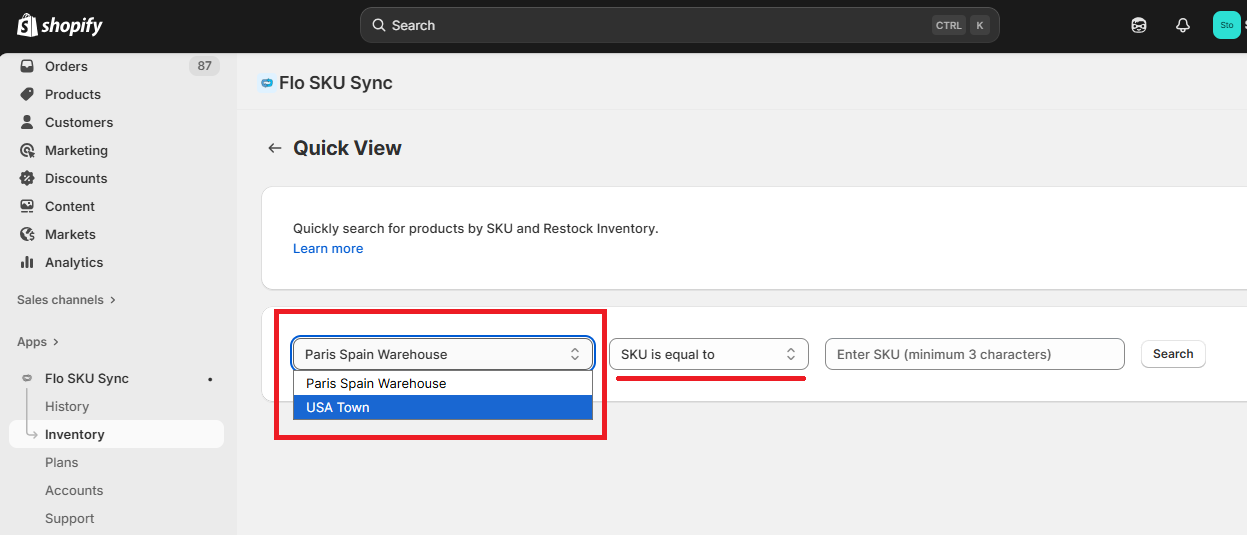
4. Search for the Duplicate SKU
Choose one of the available search options:
- SKU is equal to – Searches for an exact SKU match.
- SKU contains – Searches for SKUs containing the entered text.
- SKU starts with – Searches for SKUs that begin with the entered text.
Enter the SKU value and click Search.
The app will display all products and variants that share the matching SKU.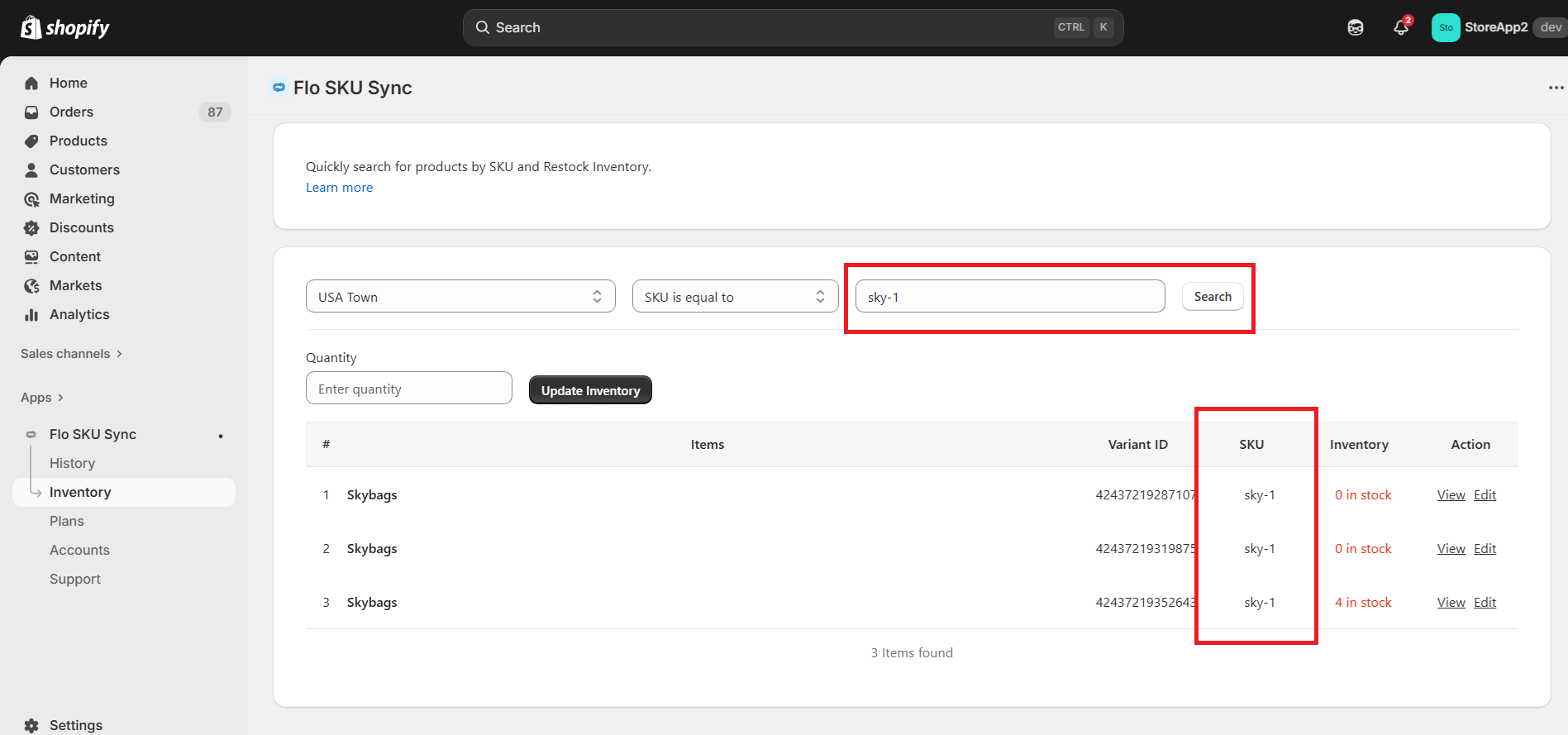
5. Update Inventory
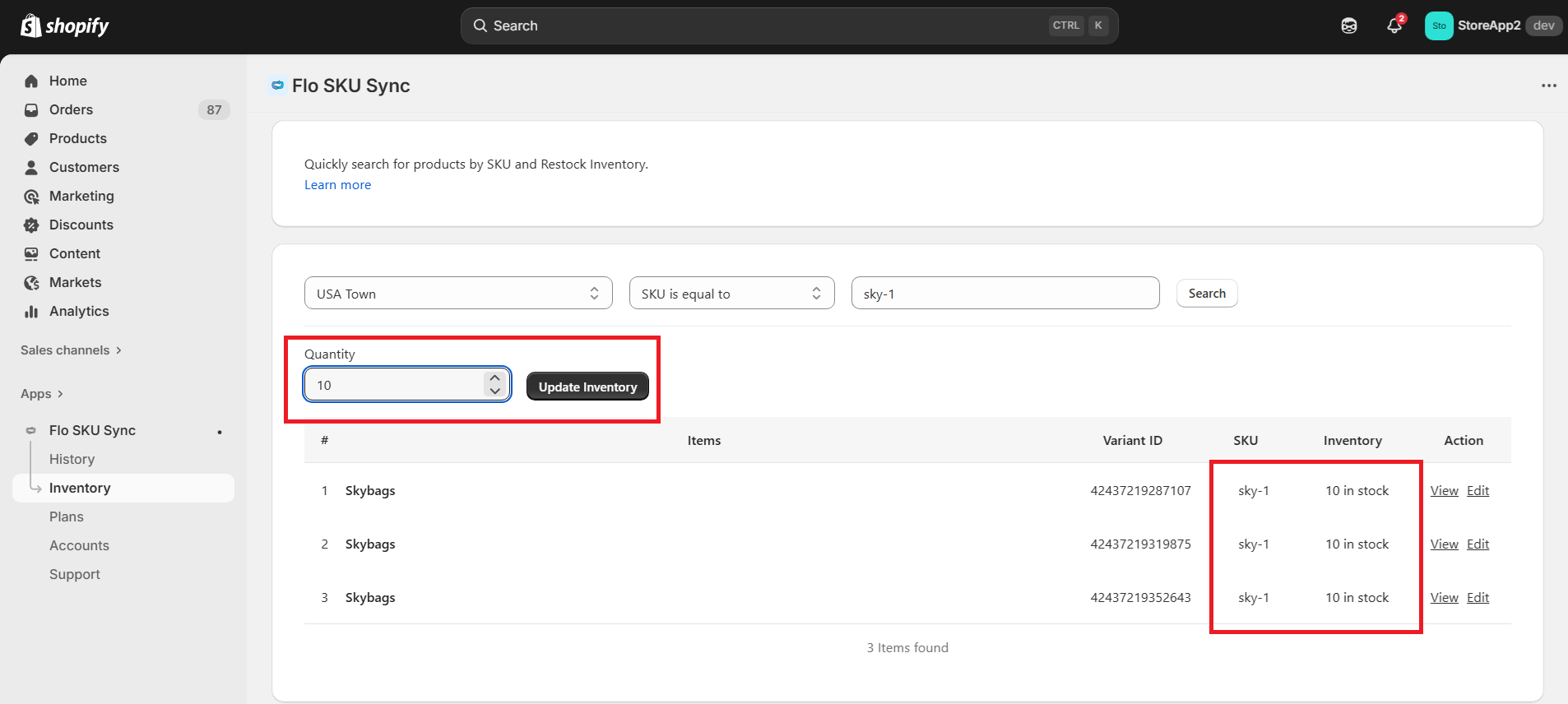
Enter the new inventory quantity for the selected SKU.
Click Update Inventory.
The app will automatically update the inventory for all products and variants sharing that SKU at the selected location.
Benefits
- Restock duplicate SKUs in a single action.
- Update all matching products simultaneously.
- Supports location-specific inventory updates.
- Eliminates the need to edit each product individually in Shopify.
- Keeps duplicate SKU inventory consistent across your store.
Tip: Use Quick View for fast inventory updates when you already know the SKU you want to restock. For location-wise inventory analysis and mismatch detection, use the Detailed View feature.