The Export Inventory feature allows you to download inventory details for your products in a CSV file. This makes it easy to review, analyse, and manage inventory for duplicate SKUs across your Shopify store.
How to Export Inventory Data
1. Open the Inventory Page
Launch the Flo SKU Sync app and navigate to the Inventory page.
2. Open the Detail View
Click Detail View to display inventory information for your products.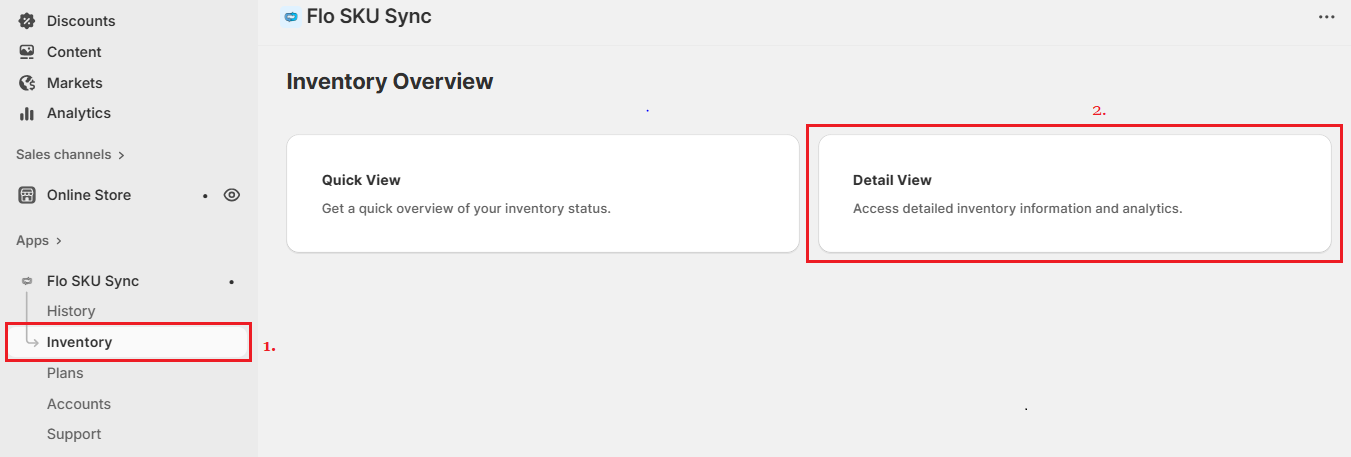
3. Choose What to Export
Use the filter dropdown to select the inventory data you want to export.
You can choose from the following options:
Show All Duplicate SKUs
Exports all products that share duplicate SKUs, including location-wise inventory quantities.
Show Duplicate SKUs with Mismatched Inventory
Exports only duplicate SKUs where inventory levels are inconsistent across products, helping you quickly identify inventory discrepancies.
Show All SKUs
Exports every SKU in your store, including both duplicate and unique SKUs.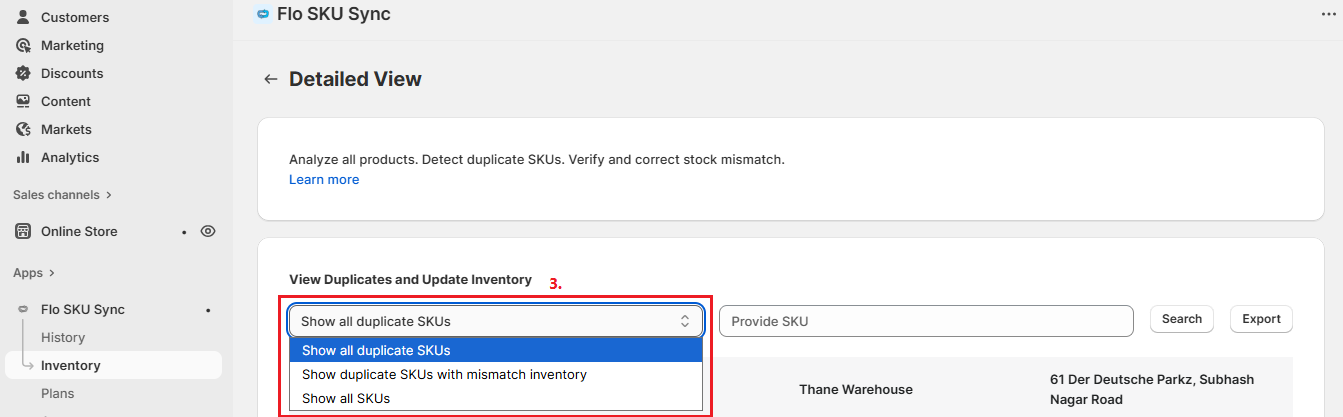
4. Review the Inventory Table
Verify that the displayed inventory matches the data you want to export.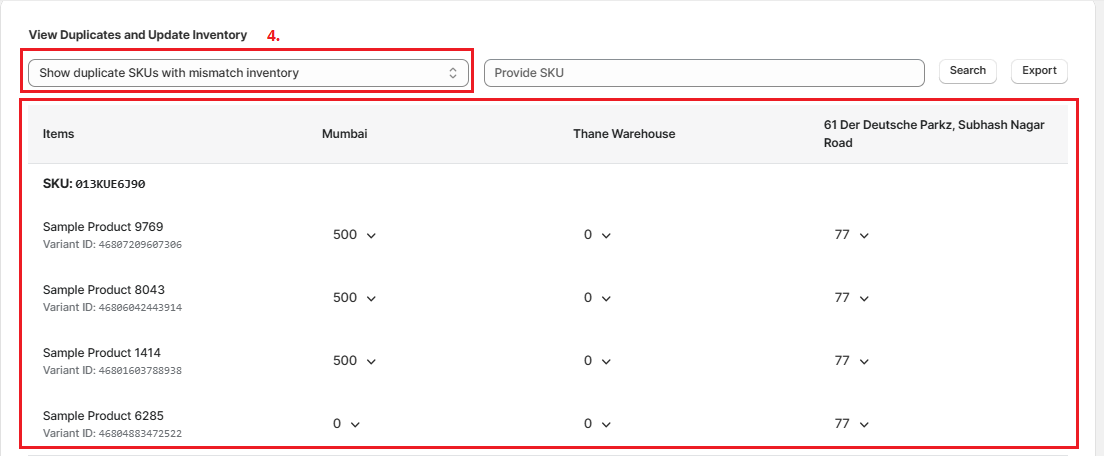
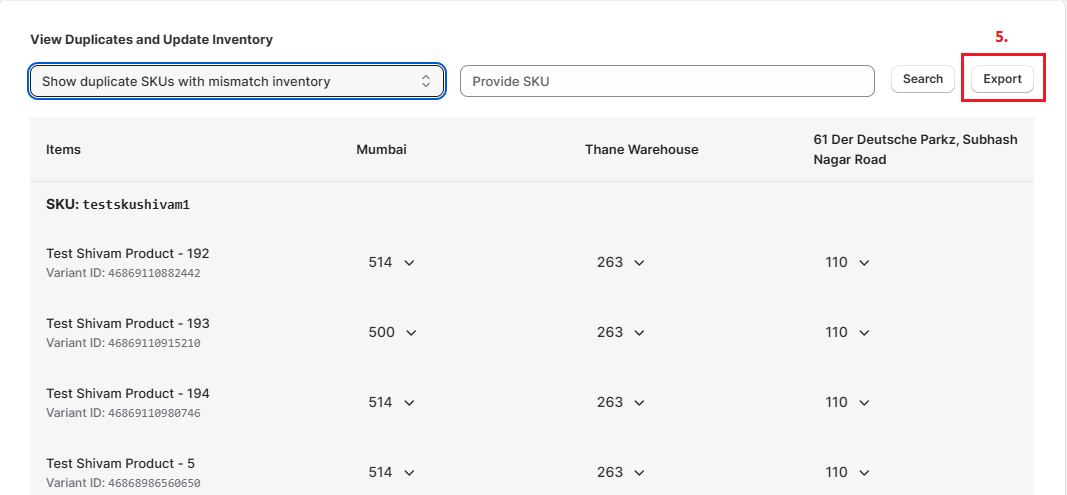
5. Export the CSV
Click the Export button.
The app will automatically generate and download a CSV file containing the inventory information based on the selected filter.
Benefits
- Export inventory data for reporting and analysis.
- View location-wise inventory levels for duplicate SKUs.
- Quickly identify inventory mismatches.
- Download inventory records in a CSV format for further processing.
- Simplify inventory auditing and stock management.
Tip: Use the Show Duplicate SKUs with Mismatched Inventory filter to quickly identify inventory inconsistencies before exporting the report.