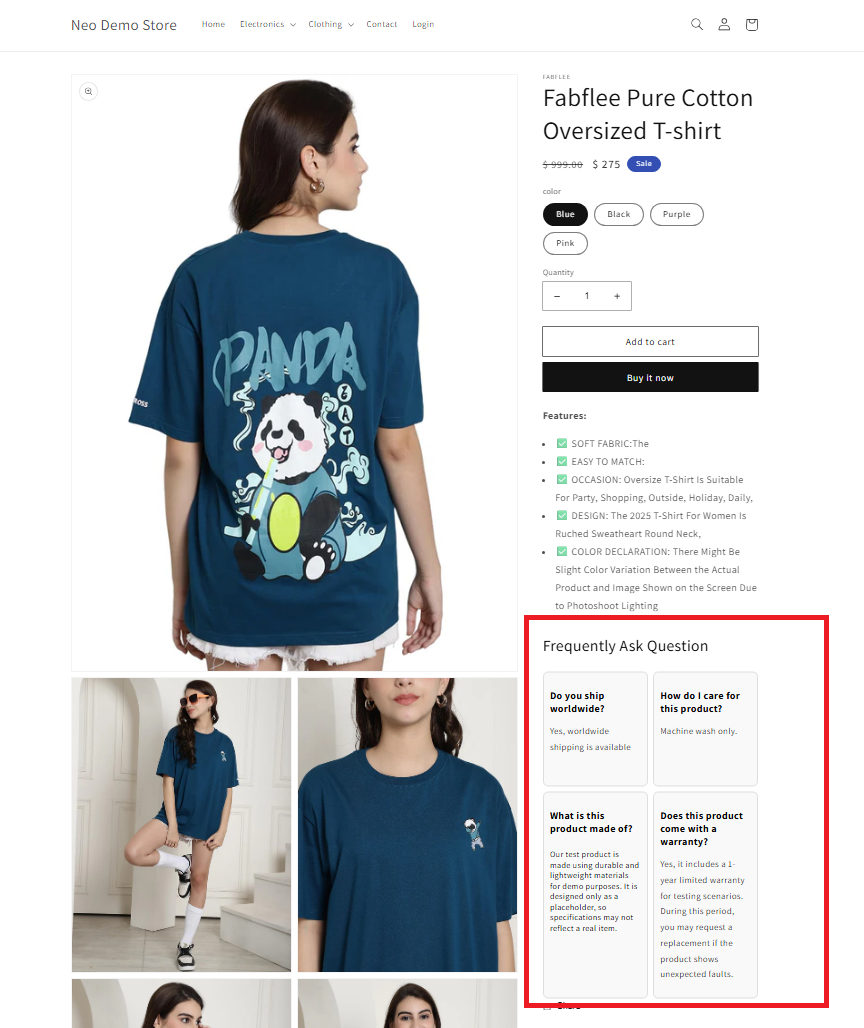
The FAQ Multicolumn Block helps you display product-related FAQs in a clean, organised multi-column layout, making it easier for customers to find the answers they need.
Instead of long, cluttered FAQ lists, questions and answers are neatly grouped into columns for a better browsing experience.
✨ Benefits
- ❓ Organise FAQs in a structured multi-column layout
- 📖 Improve readability with a clean, easy-to-scan design
- 📋 Display more FAQs without cluttering your product page
- 🎨 Customise colours, fonts, and styling to match your Shopify store
- 🤝 Answer common questions upfront to build customer confidence
How does it Work?
Step 1: Set up the metafield
- On your app dashboard homepage, locate the FAQ Multicolumn Block.
- Click Setup Metafield to automatically create a product-level metafield:
Namespace & key > neo.faq_block
This metafield will be used to connect your product pages with the FAQ data you create

Step 2: Add entries for metaobjects
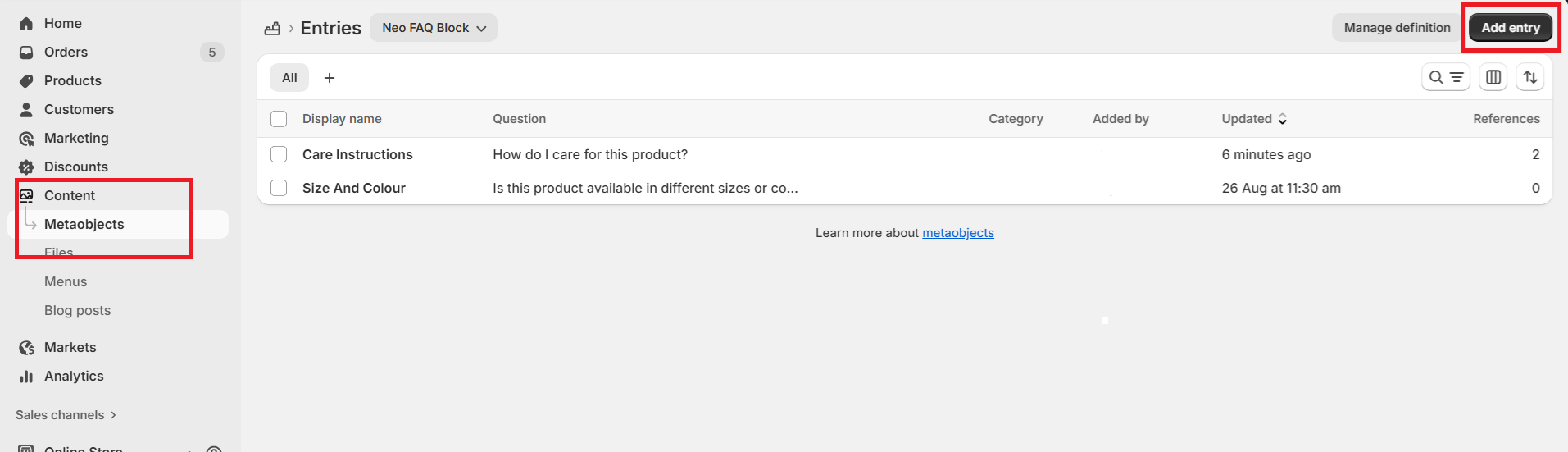
- In your Shopify admin, go to Content > Metaobjects.
- Locate the Neo FAQ Block.
- Add entries containing:
- Question
- Answer
- Category (optional)
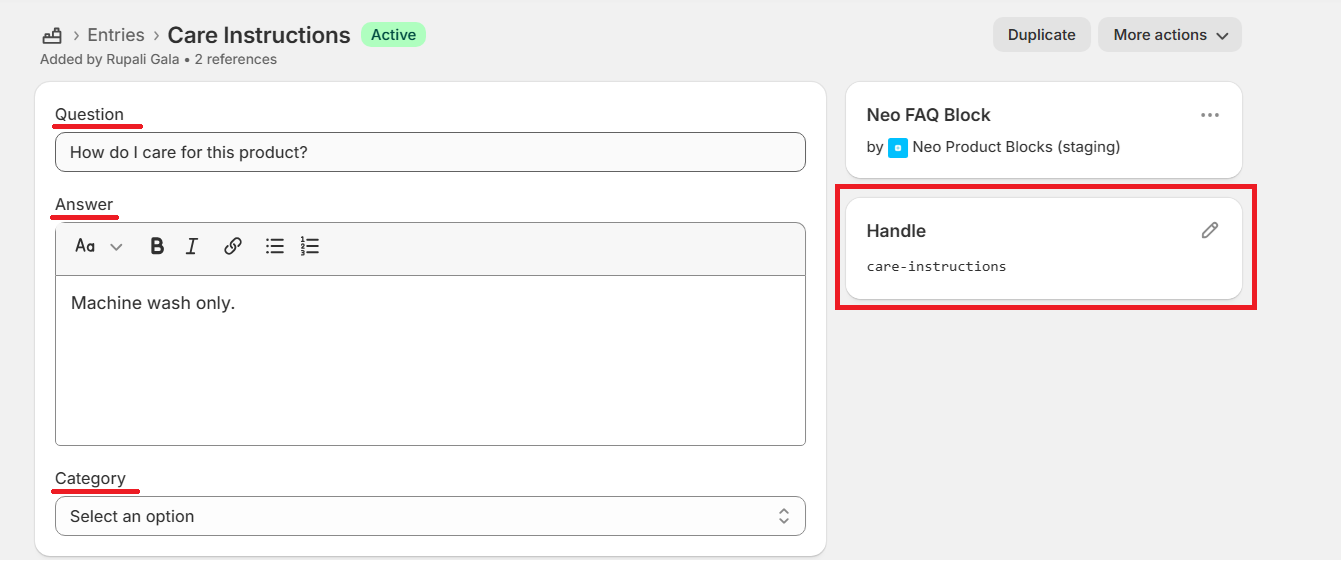
Example:
- Question: How do I care for this product?
- Answer: Machine wash only.
- Category: Quality (optional)
- You can add as many entries as you want to display.
Pro Tip: Use unique handle names for each FAQ entry. This makes it easier to assign them later to the right products.
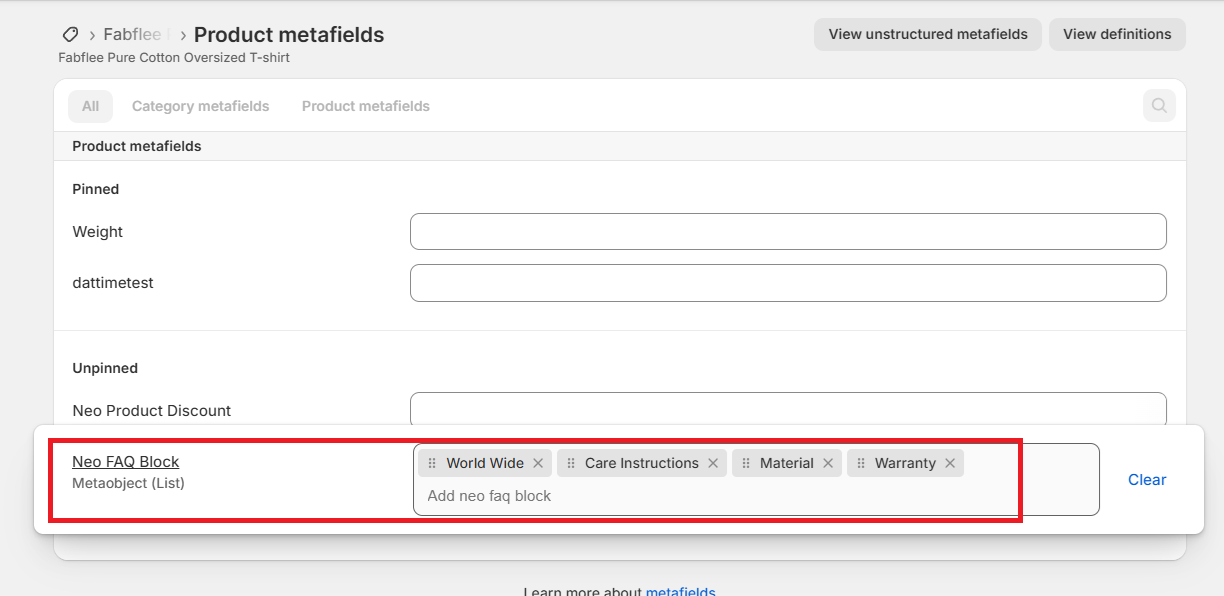
Step 3: Assign entries to products
- In the Shopify admin, open the product where you want to display FAQs.
- Scroll to Metafields > Neo FAQ Block.
- Select the entries you want to assign to that product.
- Click Save.
Step 4: Add the block to your product template
- Go to Online Store > Customize theme settings.
- Select the Product Template.
- Add and position the Product FAQ Multicolumn Block as required.
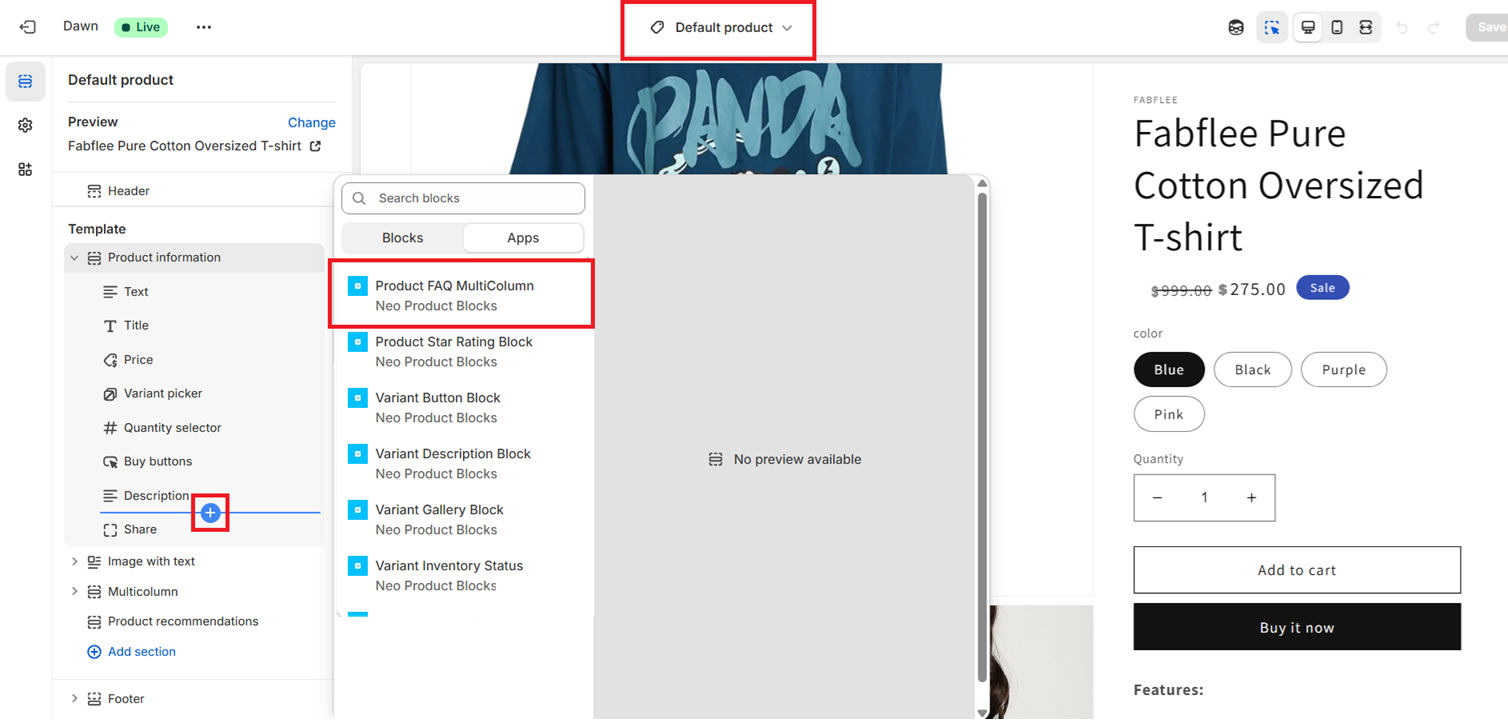
Step 5: Connect metaobjects
- Go to the block added and locate Metafield Configuration.
- Click on the "database" icon and select the " Neo FAQ multicolumn" metaobject"
- That's all, this will fetch the complete data stored in the metaobjects that you have added and display the entries as per assigned at product level.
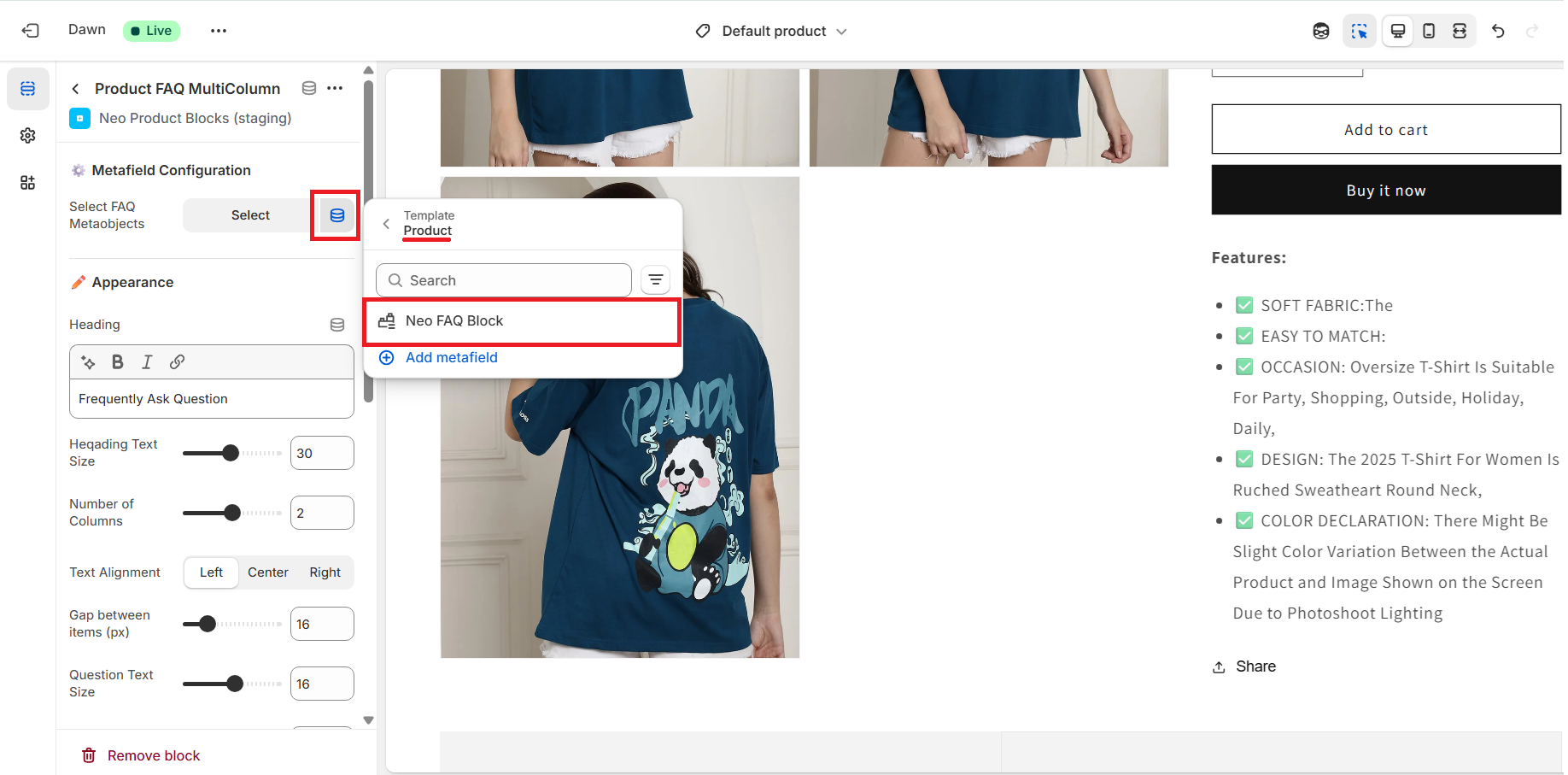
Step 6: Style your block
From the block settings, you can customize:
- Font size
- Text & background colors
- Alignment
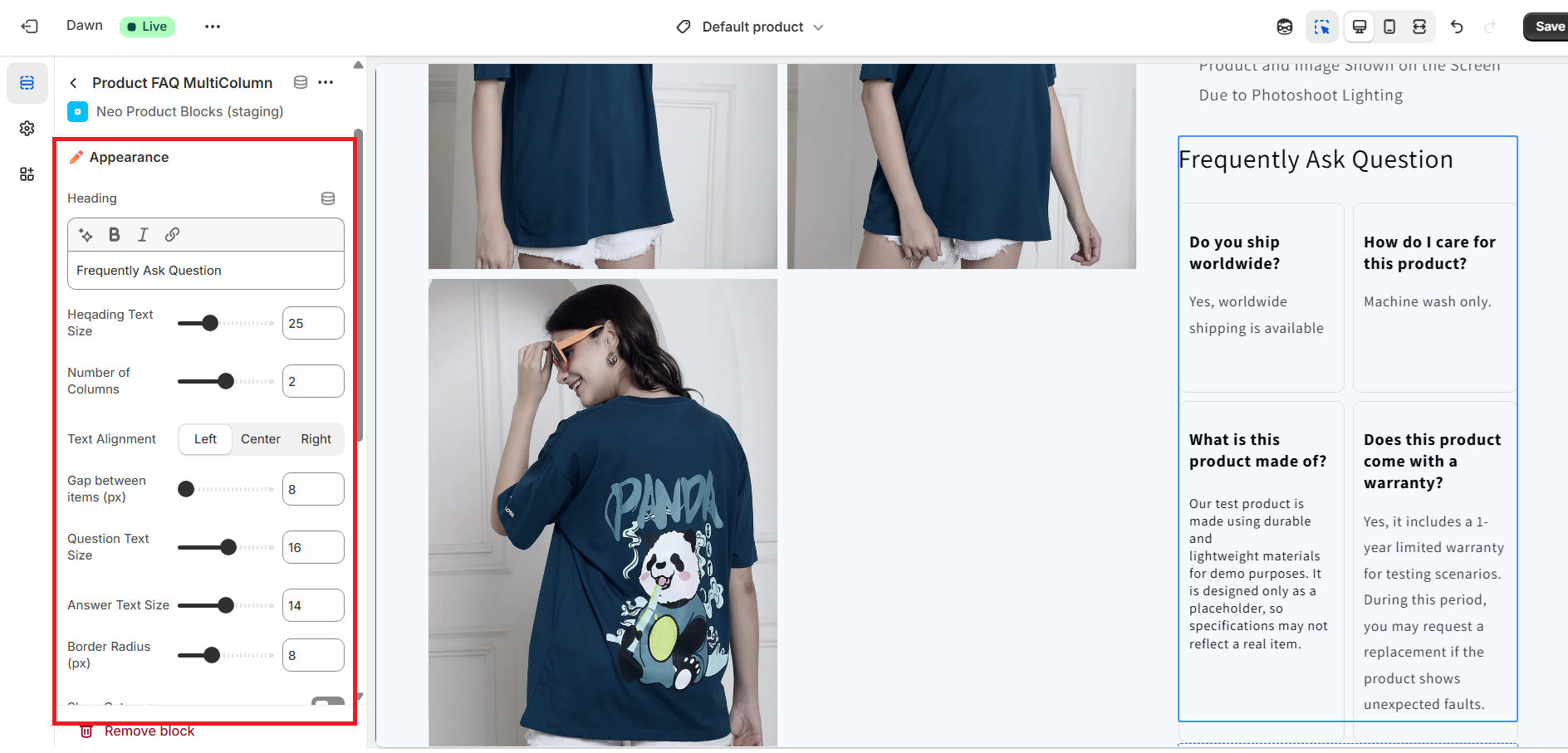
Preview your changes to ensure they match your store’s design.
Step 7: Save & Publish
When everything looks good, click Save to publish your updated product pages.
Sample Block preview :