With the Sleek App dashboard, you can send invoices to the customer’s email address either automatically or manually. For this, you need to verify the "from" email address and configure the other details in the dashboard. Please find the guide link here on how you can verify the email address and why it is needed.
Once done, to send Invoices Automatically, you need to select as to when would you like to auto-send an email with the GST-compliant invoice to the customer. The options are:
- When order is created
- When order is paid
- When order is Fulfilled
Additionally, if you have an internal team that you would like to notify as well along with the customer, you can send an email to them as well. You simply need to add them in the CC or BCC section and configure the Send email to "All".
OR you can set it to only 'CC' and 'BCC' to only send it to the internal team.
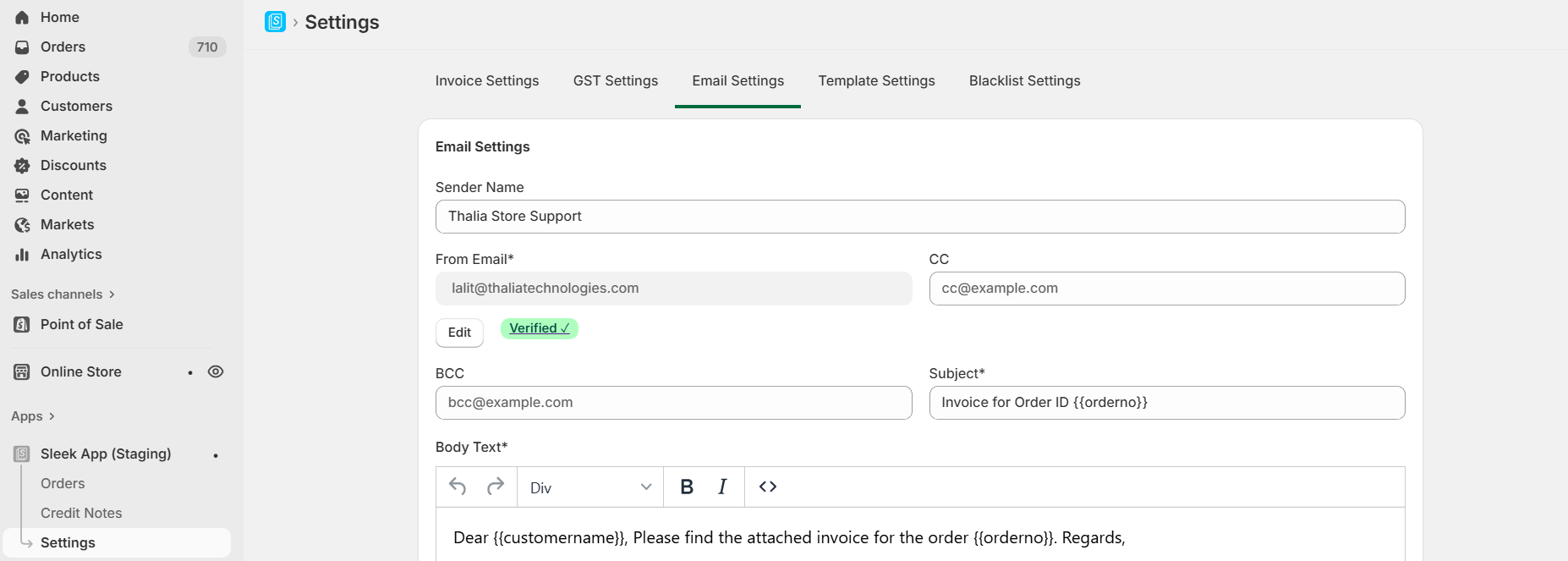
2. To Send Invoices Manually -
For each invoice, under the Action Column > Click on Select > From Dropdown > choose Email Invoice Option >A pop-up modal will open to check the details, and click on the Send button.
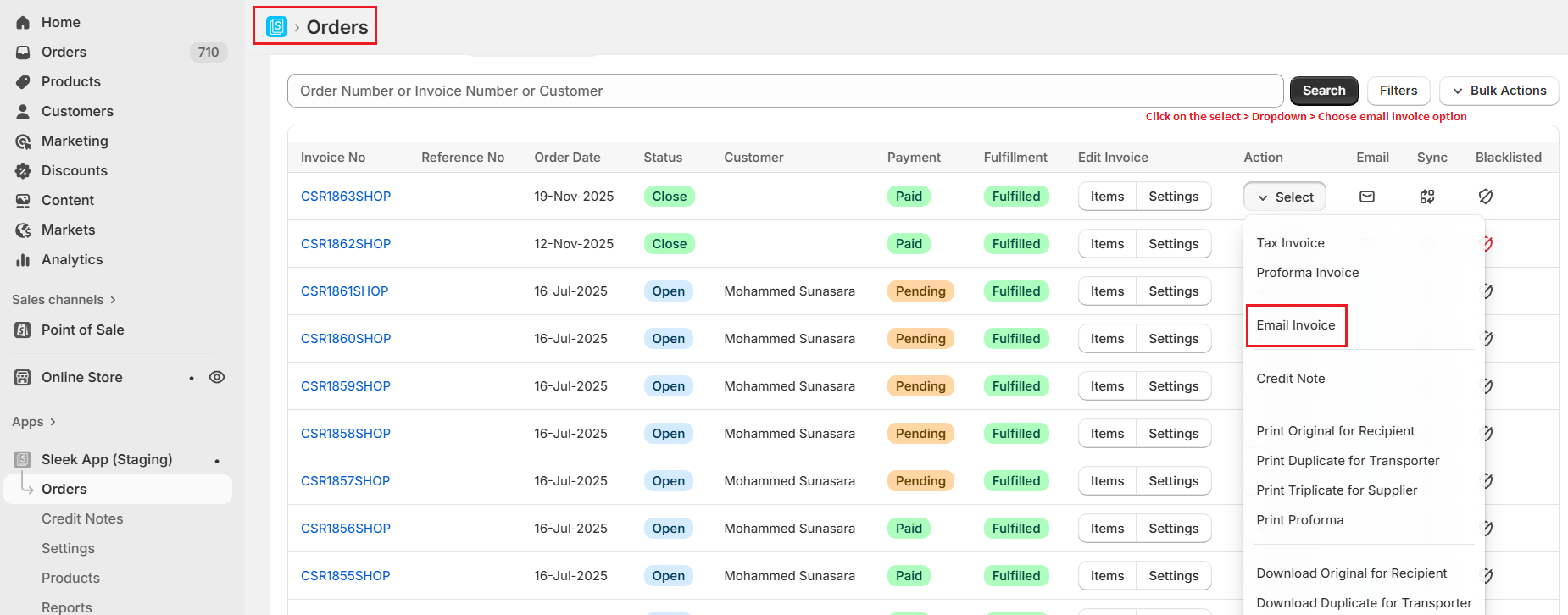
The email icon turns green when an invoice is successfully sent to the customer.

Need help? contact [email protected]