With the Bolt app, you can bulk edit the product data into a CSV file by selecting the fields you want in just a few clicks. For this, you simply need to create the task.
Step-by-Step Instructions
Step 1) Go to Bolt Dashboard ->New Task->Select the field that you want to update.
Step 2) Select All products in a CSV.

Step 3) Upload a CSV file containing at least one of the following columns: Variant ID, Variant SKU, or Product Handle.
- Map the CSV columns to the corresponding fields and submit the file.
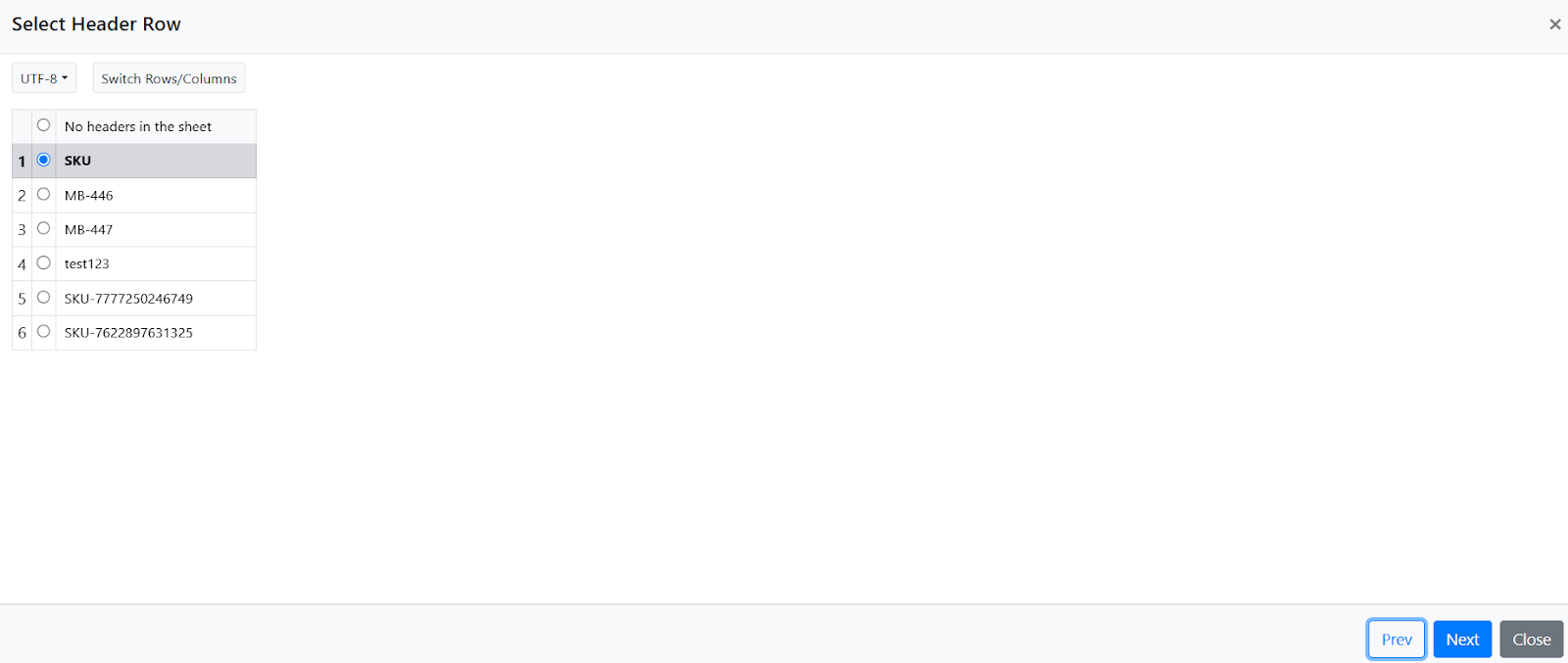
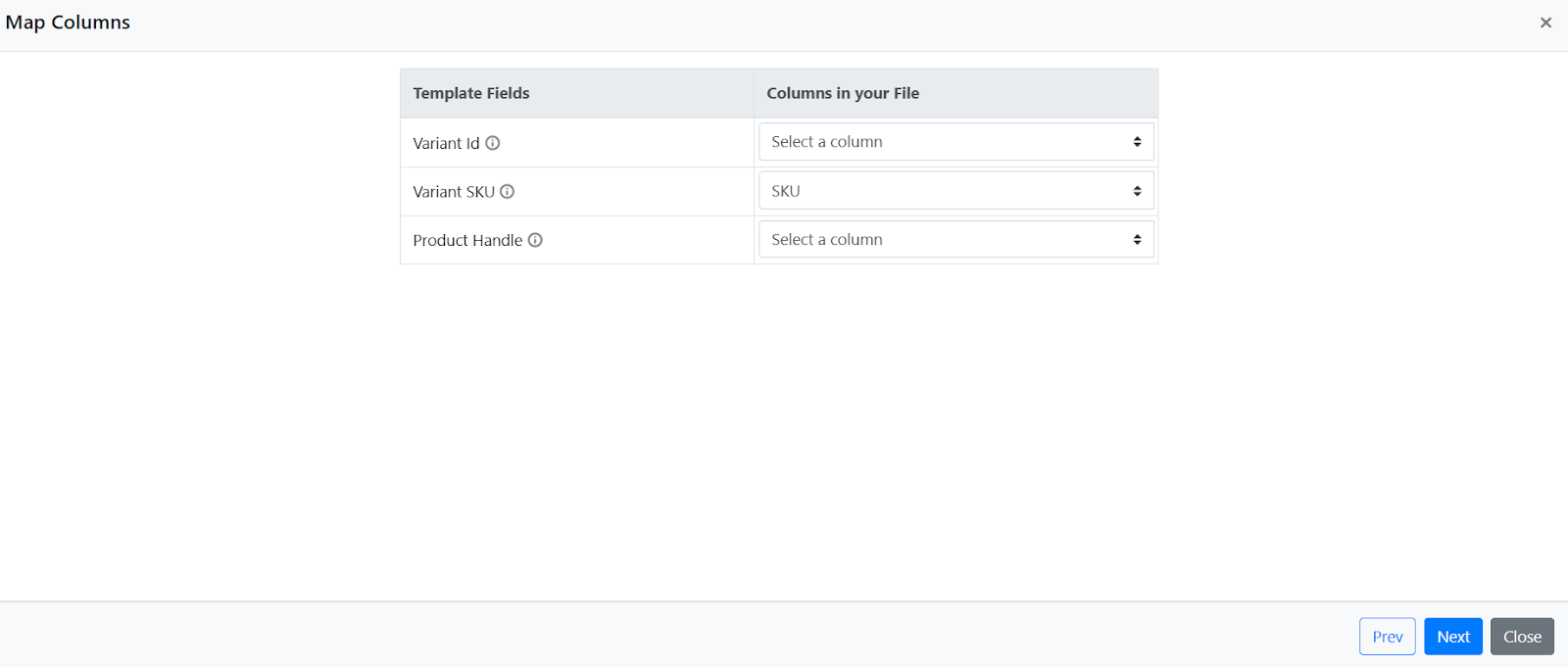
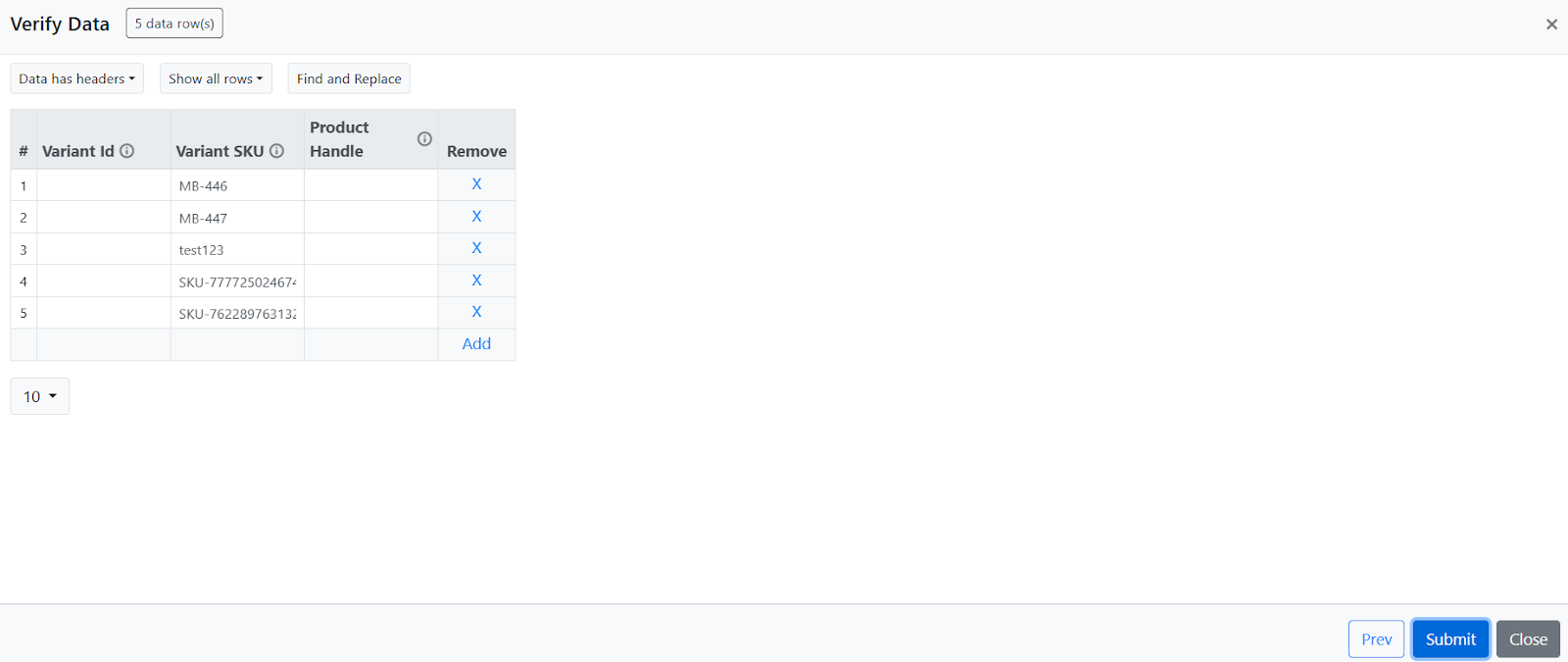
Step 4) Click Next. The app will read the CSV file and display the number of matching products or variants. Any Variant ID, Variant SKU, or Product Handle that is not found in your store will be skipped.
Step 5) Configure the edit rules based on your requirements.

Step 6) Preview the changes by selecting a sample product and verify that the updated values are correct.

Step 7) Choose to run the task immediately or schedule it for later.
The app will execute the task as per the configuration. You can monitor the task activity in real-time and see the products that were edited in the history section of the app dashboard.
Sample CSV
Refer to the sample CSV below for the required file format.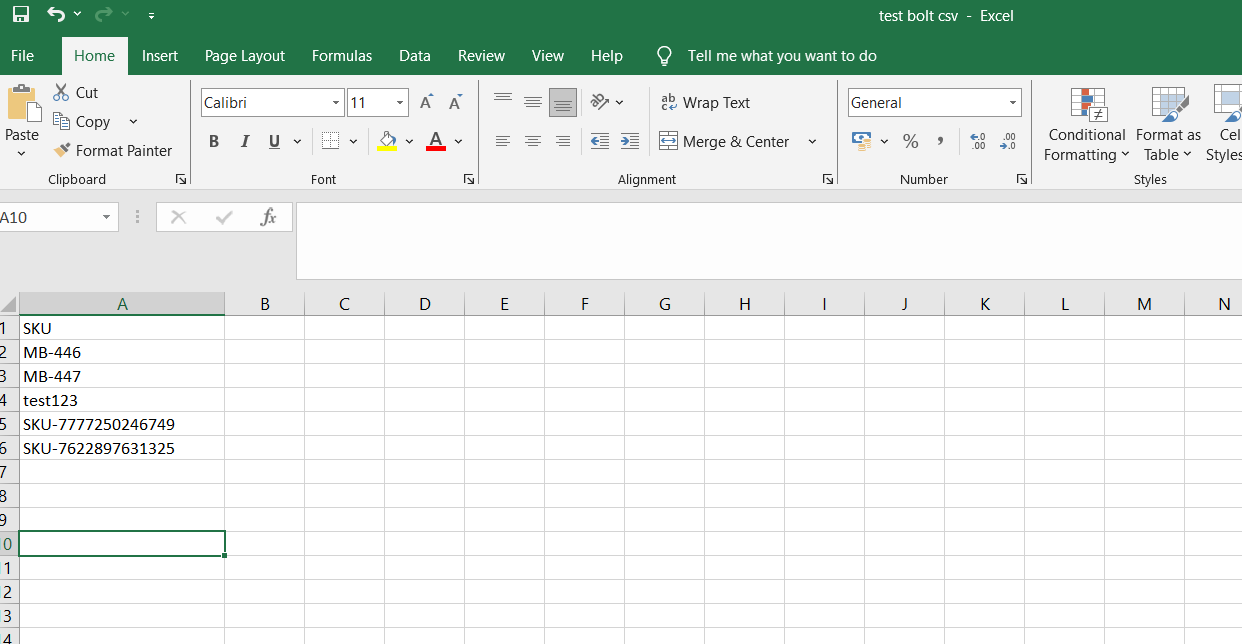
Troubleshooting
Is your bulk task updating too slowly? Shopify restricts API requests (approx. 2 updates per second). Running multiple bulk edits at the same time distributes bandwidth and causes slow execution times. We strongly recommend running tasks sequentially.