⚠️ Before You Begin (Existing Users Only)
If you're already using Watchlyst with the legacy code integration, you'll need to remove the old code before switching to the App Block integration.
Remove the following integration code from your product template:
<div id="thewatchlystalertButton" class="twlbutton twlinline"></div>
Empty the watchlyst.liquid snippet
Navigate to: Online Store → Themes → Edit Code → Snippets → watchlyst.liquid
Remove all the contents of this file.
Remove the legacy code from theme.liquid
Open: Online Store → Themes → Edit Code → Layout → theme.liquid
Remove the following code that appears before the closing </body> tag:
<!-- Thewatchlyst CODE Start -->
{% if template.name == 'product' %}
  {% include 'thewatchlyst' %}
{% endif %}
<!-- Thewatchlyst CODE END -->
Note: These steps are only required for merchants upgrading from the legacy integration. New installations can skip this section.
🚀 Steps to Add the Watchlyst App Block
1️⃣ Open the Theme Editor
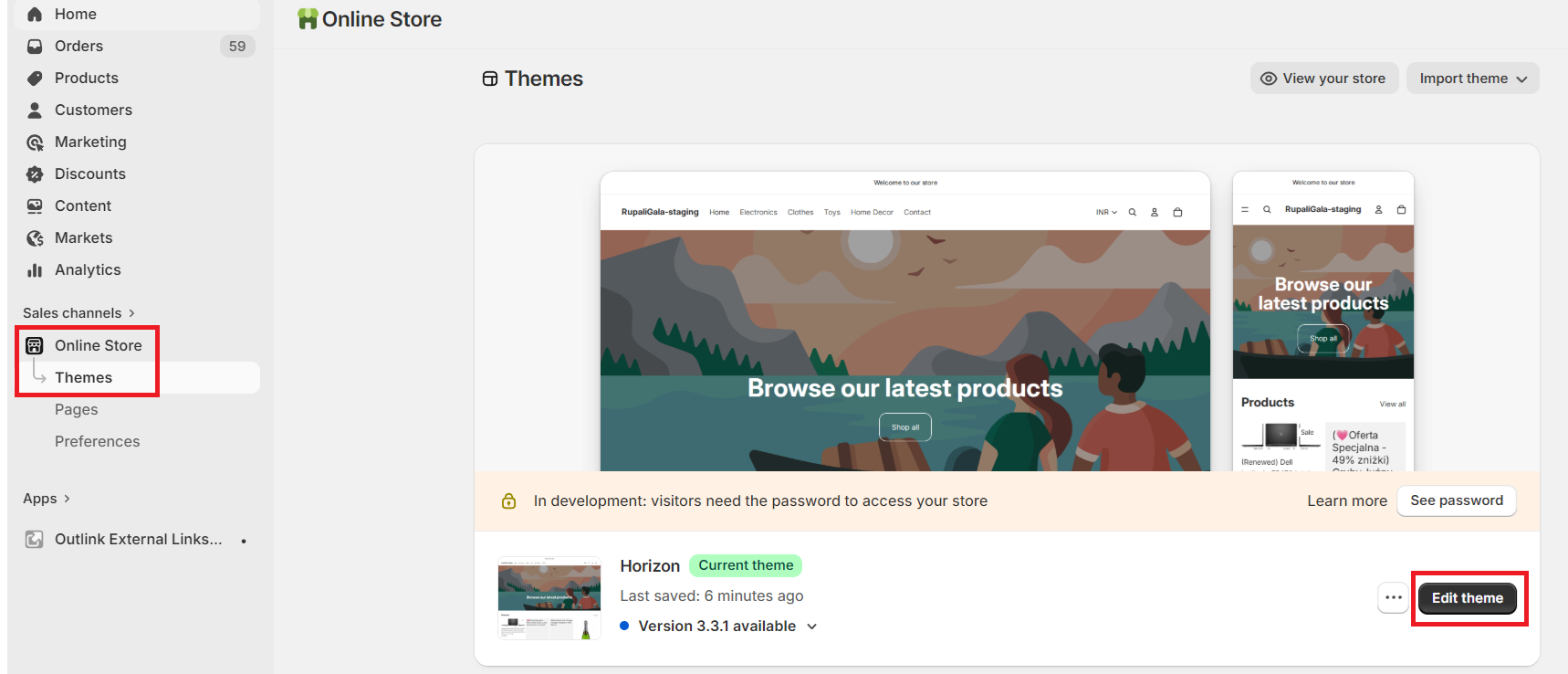
From your Shopify Admin, navigate to:
Online Store → Themes → Edit
2️⃣ Enable the App Embed
In the Theme Editor:
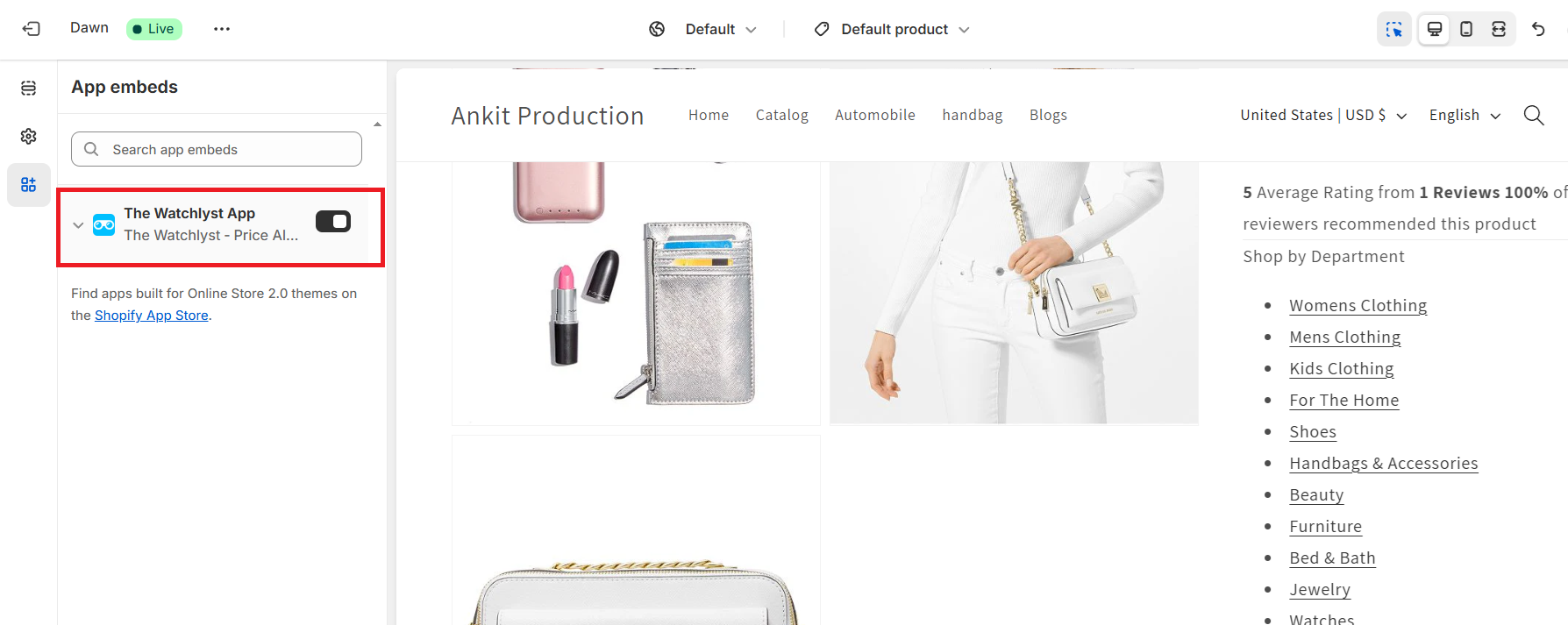
- Click the App Embeds (App Embed) icon.
- Enable The Watchlyst App.
- Click Save.
3️⃣ Open a Product Template
From the page selector at the top of the Theme Editor, choose any Product template where you'd like the button to appear.

4️⃣ Add the Watchlyst App Block
From the left sidebar:
- Click Add Block
- Select Watchlyst App under the Apps section.

5️⃣ Position the Button
Drag and drop the Watchlyst App block to your preferred location on the product page.
💡 Recommended Placement:
Position the button between the Buy Buttons and the Product Description for the best customer experience.

6️⃣ Customise the Button (Optional)
The default App Block displays the button inline on the product page.
You can further customise its:
- 🎨 Appearance
- 📍 Position
- 🖱️ Style
- ⚙️ Behaviour
from the Watchlyst app dashboard.

7️⃣ Save Your Changes
Click Save in the Theme Editor to publish your changes.
💬 Need Help?
If you experience any issues while integrating the App Block or would like help customising the button, our support team is happy to assist.
📧 Email: [email protected]