This guide details how to perform code integration for Spreadr buttons inside Online Store 2.0 theme files (e.g. Dawn Theme).
1. Replace the Add to Cart button with the Spreadr button
Steps
1. Open your Shopify admin.
2. Click Online Store.
3. Click Themes.
4. Click Actions for your published theme.
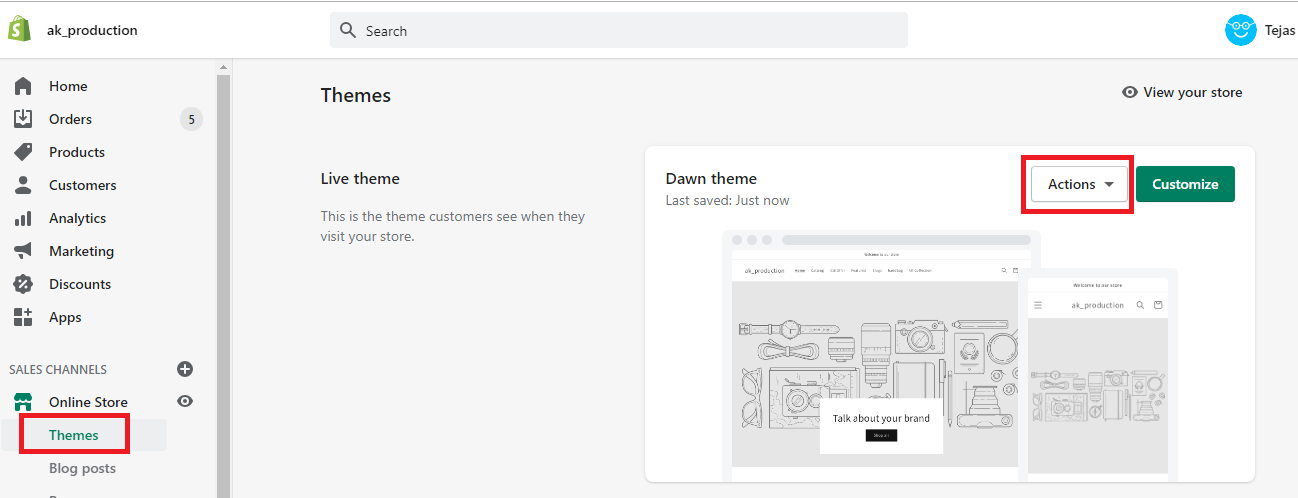
5. Click Edit code.

6. Click the file main-product.liquid which appears under Sections.

7. The main-product.liquid or buy-buttons.liquid file will open in the online code editor. In the online code editor window, locate the HTML for your add-to-cart button (you can do this by searching with CTRL-F or COMMAND-F). The HTML for your add to cart button will look something like this:
<button type="submit" name="add" class="product-form__submit button button--full-width {% if block.settings.show_dynamic_checkout and product.selling_plan_groups == empty %}button--secondary{% else %}button--primary{% endif %}" {% if product.selected_or_first_available_variant.available == false %}disabled{% endif %} > {%- if product.selected_or_first_available_variant.available -%} {{ 'products.product.add_to_cart' | t }} {%- else -%} {{ 'products.product.sold_out' | t }} {%- endif -%} </button> |
The trick is to find a <button> tag that includes the text 'products.product.add_to_cart'.
8. Add the following code encapsulating the <button> code that you found in step 7.
{% render 'spreadr-custom', product:product, s_showSpreadr:1, s_hideCart:1 , s_classes: 'product-form__submit button button--full-width', s_style: '' %} <div class="s_original_{{ product.id }}"> //<button> code </div> |
The boxes in blue represent the Spreadr integration code. The box in red is the existing <button> code.
It will look as shown in the image below.
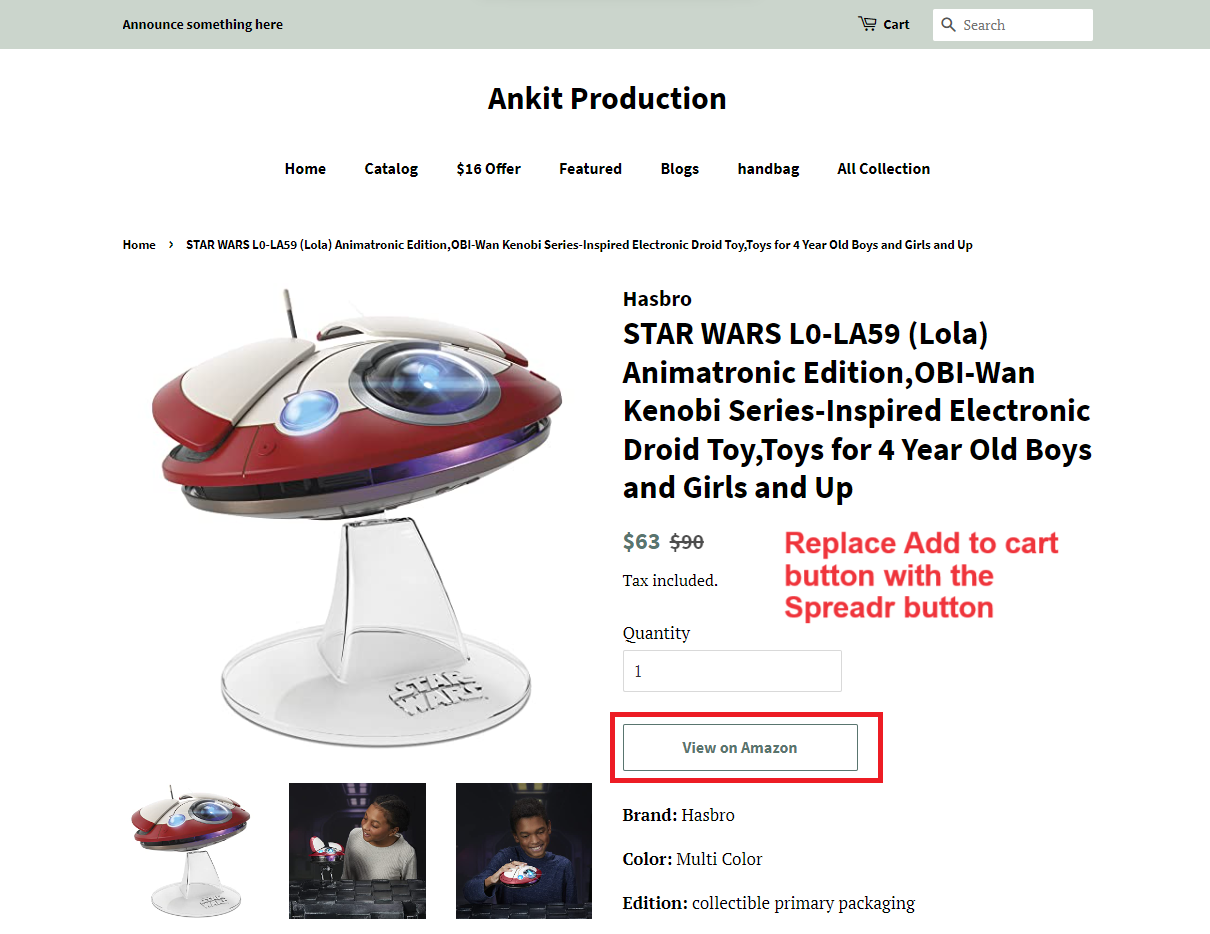
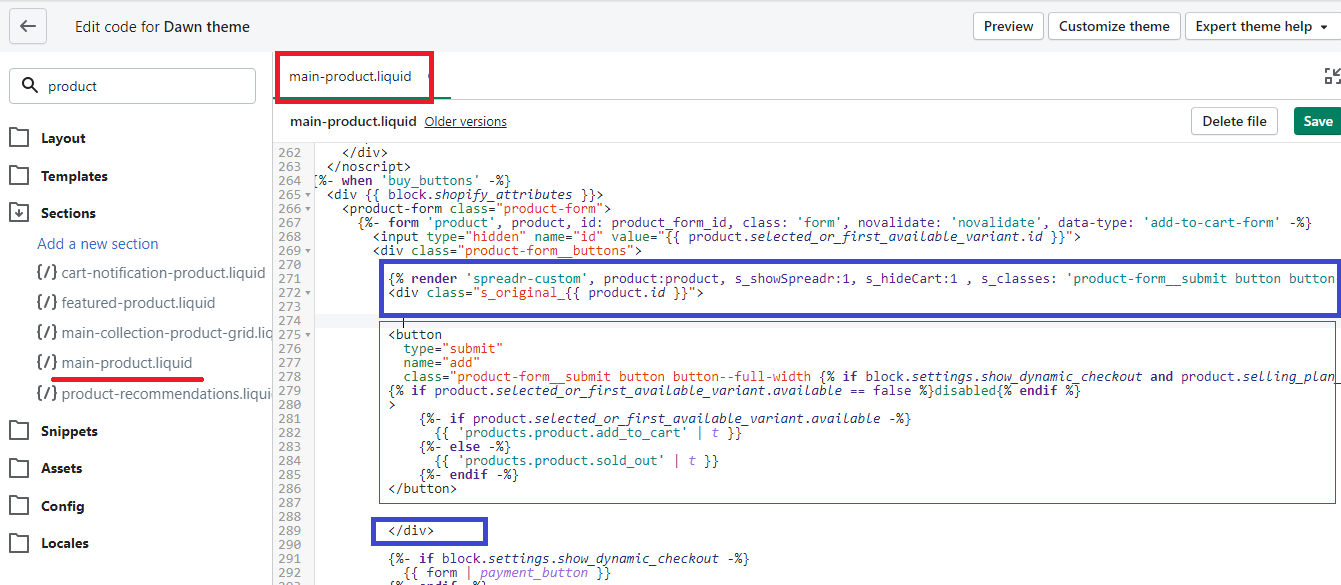 The Add to Cart button on the product pages should now be replaced with the View on Amazon button for Spreadr products.
Preview:
2. Add the Spreadr button along with the Add to Cart button.
Go to sections/main-product.liquid or snippets/buy-buttons.liquid file.
Add the below code to display the Spreadr button along with the add to cart button for Spreadr products.
//<button> code {% render 'spreadr-custom', product:product, s_showSpreadr:1, s_hideCart:0 , s_classes: 'product-form__submit button button--full-width', s_style: 'margin-top:10px;' %} |
The code will look as -
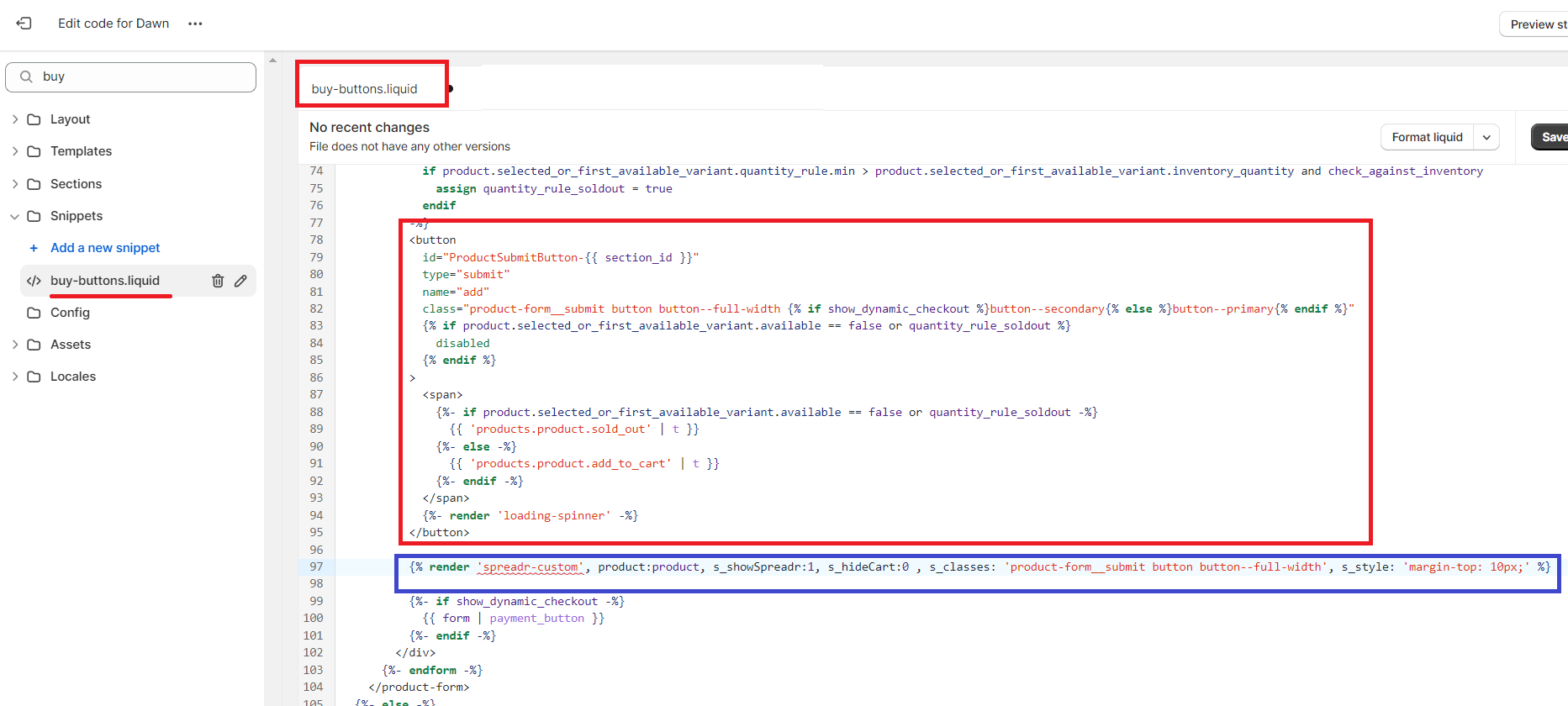
This will add a Spreadr button along with the existing add to cart button on the Product page.
Note: The code may vary from theme to theme.

Similarly, the Spreadr button code can be placed for the Featured Product Card on the Home page.
If you run into issues or layout bugs, reach out to [email protected]. We will configure the theme files for you free of charge.