Getting started with Clever Variant takes just a few minutes. Follow the steps below to display product images based on the selected variant on your Shopify product pages.
1. Install the Clever Variant App
Open the Shopify App Store, search for Clever Variant Images , and install the app on your store.
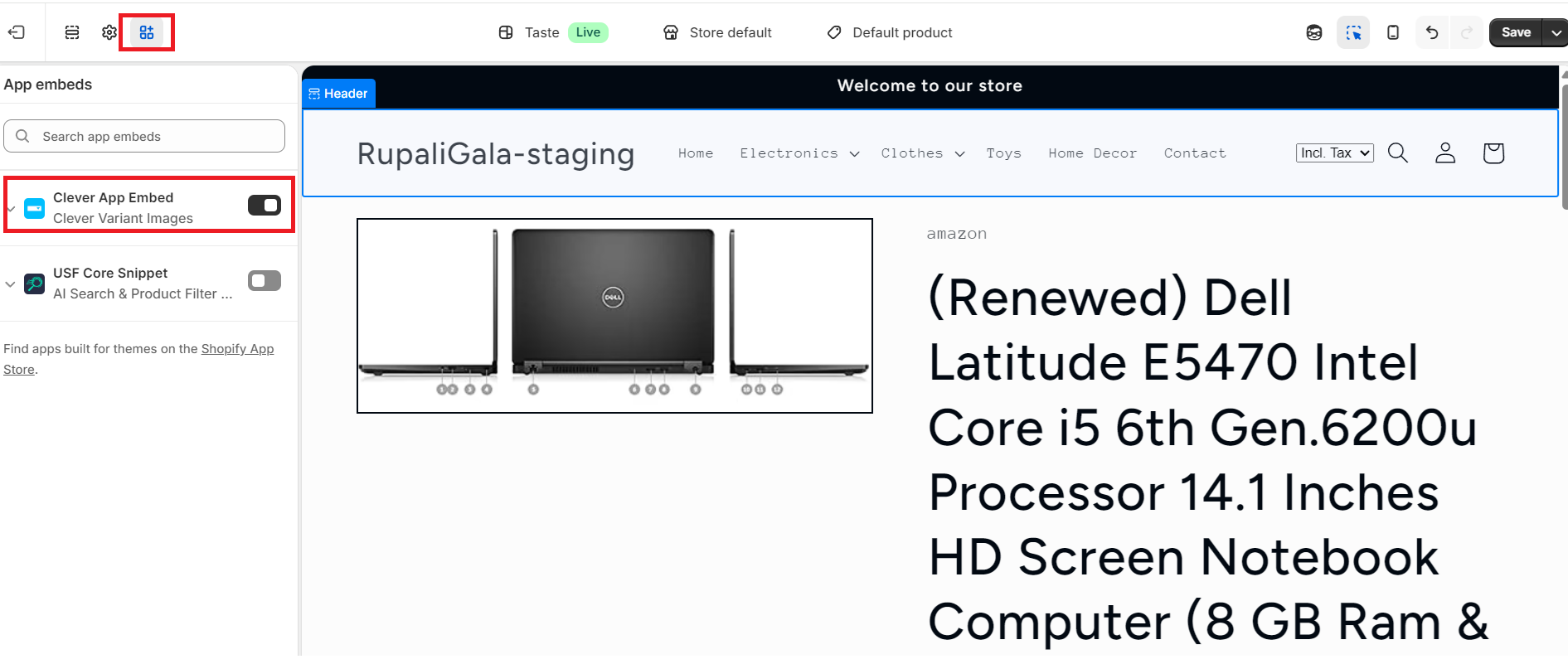
2. Enable the App Embed
In your Shopify Admin:
- Go to Online Store → Themes.
- Click Customize on your published theme.
- Open the App embeds section.
- Enable Clever App Embed.
- Click Save.
Note: Enabling the app embed allows Clever Variant to work on your storefront.
3. Install the App Code
Open the Clever Variant app from your Shopify Admin.
- Select your active theme.
- Click Install Code.
No coding or manual theme edits are required.
4. Configure Variant Images
Use the Clever Variant editor to organize and assign product images to their respective variants.
For detailed instructions on configuring variant images, refer to the app guide here.
You're All Set!
Once setup is complete, your Shopify product pages will automatically display the correct images when customers select different product variants, creating a smoother and more engaging shopping experience.